E-Ink displays are pretty magical.They require power to form an image on the screen, but once it's been formed, it doesn't need any additional power for that image to remain in place.I wanted to take advantage of this and turn my Kindle into a calendar that I barely need to charge.
Why an old Kindle makes a great calendar The screen can display information even when the Kindle is asleep If you've ever owned a Kindle, you'll know that when the device is sleeping, the display doesn't go blank.Instead, it shows an image on the screen, but when you turn your Kindle back on, you'll likely notice little change in the remaining battery life.A Kindle can display a static image while using very little power, making it an ideal choice for a calendar.
Depending on your calendar view, you might only need to update the image once a day, once a week, or even once a month.It means that, potentially, your Kindle could display a calendar view while only needing to be charged a few times a year.Amazon has locked down standard Kindles so that displaying your own images isn't easy, and displaying images that change from day to day is even harder.
Thankfully, jailbreaking a Kindle lets you do a lot more.Related 7 things my jailbroken Kindle can do better than an Android tablet or iPad Sometimes a Kindle is all you need.Posts 5 By Adam Davidson My Kindle shows exactly what I need to know Today's appointments are the priority Close When I decided to see if I could turn my Kindle into a calendar, I had a few decisions to make.
First, I had to decide how much information I wanted the Kindle to display.I could have set it up to show a full-month calendar view, but on a six-inch Kindle screen, the events would be far too small unless I held the Kindle close.Even a weekly view could potentially be too small to read easily if there were a lot of events to display.
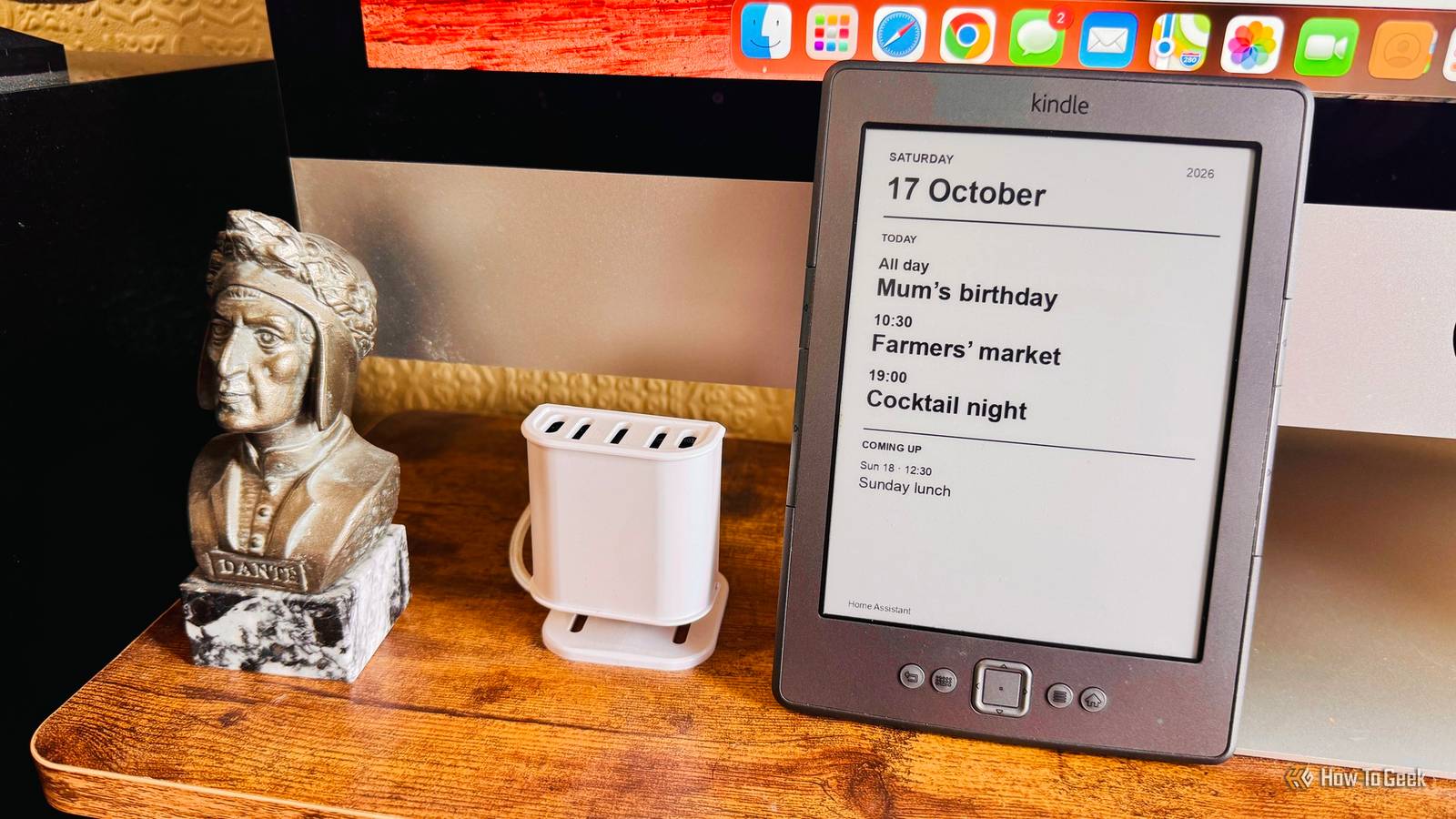
In the end, I decided to prioritize today's events, with tomorrow's events listed below if there was room.If a day has many events, the screen may show none of the next day's events, but if the current day has few events, more upcoming events will appear.By only including a few events, I can read the calendar from a distance.
I don't need to pick up the Kindle to be able to see what calendar events are coming up.Home Assistant and KOReader are what make my calendar tick My jailbroken Kindle lets me replace the normal sleep screen My Kindle calendar runs on two main pieces of software.The first is KOReader, an open-source document viewer app that you can run on a jailbroken Kindle.
It can be used instead of the stock Kindle eReader software, and is far superior, offering support for a wider variety of formats and giving you much more control.KOReader also supports plugins, and you can write your own scripts to do things beyond its standard features.I created a custom plugin that displays the calendar image whenever the Kindle goes to sleep.
The second piece of the puzzle is Home Assistant.I have my calendar set up in Home Assistant, and this is the information that is used in the calendar image.A small Python script converts these events into a 600 x 800 image to fit my fourth-generation Kindle's display.
The Kindle downloads the image over Wi-Fi, and when the device sleeps, it displays the calendar image for the day.The Kindle only needs to update once per day It wakes to update, then goes straight back to sleep Since I opted to show one day's events at a time, the calendar image needs to be updated on a daily basis.The KOReader plugin handles this, too.
Early each morning, the Kindle wakes, downloads the day's new calendar image, sets it as the sleep screen, and then goes back to sleep again.The Kindle stays awake only long enough to update the calendar screen, so it doesn't use much power before returning to sleep.Since this happens only once a day, it doesn't significantly affect the Kindle's battery life.
If I'm not using the Kindle for reading, it can last a long time before I need to charge it.The best part is that I can still use my Kindle as normal for reading books.When I'm done, I just put it to sleep, and it reverts to my calendar.
I leave it up in my home office so I can glance at the screen whenever I want to see what's coming up for the day, and in the evening, if I want to read, I can just grab it and wake it up.I can enable and disable the calendar sleep screen through a KUAL menu.Putting my Kindle's sleep screen to good use My Kindle spends far more time asleep than awake, so it made sense to get better use out of the sleep screen rather than just showing a screensaver image.
Now my Kindle is useful when I'm reading it and useful when I'm not.
Read More