Some Android apps do one thing really well, and that’s it.No ads, no in-app purchases—just providing a feature that Android itself doesn’t have.Caffeine is one such app, and it’s been following me around for years on countless phones.
So simple that it should be built-in It doesn’t even need to be updated Android, along with pretty much all smartphones and smartwatches, has incredibly barebones display timeout options.You choose a length of time—30 seconds, 1 minute, etc—and the display simply turns off if you haven’t touched it in that amount of time.Now, a handful of devices allow you to keep the display on when you’re looking at it, but that’s not super common.
It’s also not a perfect solution for situations when you might want to keep the screen on longer than the default setting.For example, when I’m reading a recipe in the kitchen, I’m not always staring directly at my phone.I read an instruction, go off and chop some onions or something, then come back and read the next step.
This is where the Caffeine app comes in handy.Diving into the display settings, changing the screen timeout, and then repeating the process when I’m done would be a pain.Caffeine allows me to skip all that and temporarily keep my phone’s screen on for a longer period of time.
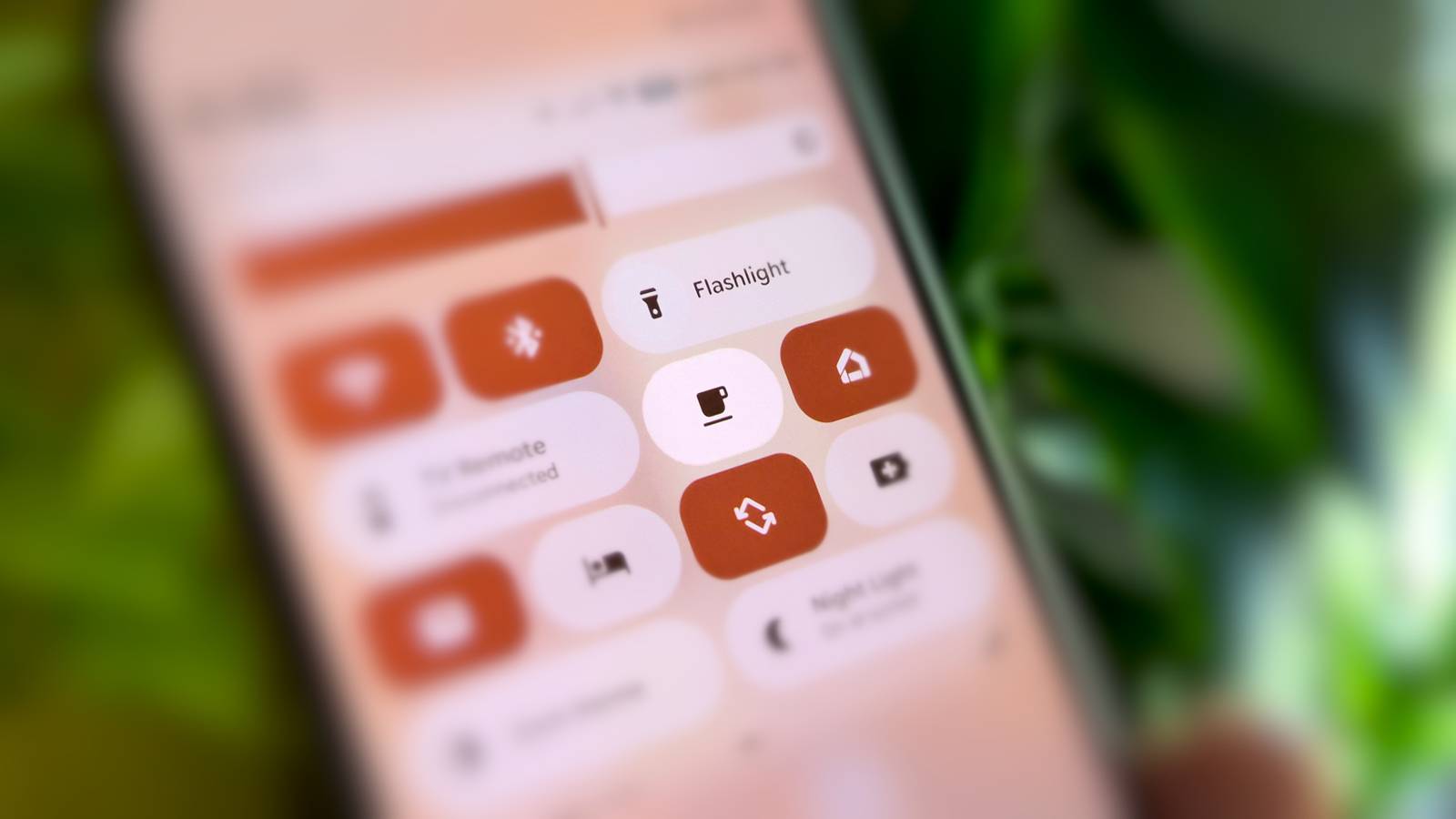
All I have to do is tap a Quick Settings button.Related The closest thing to Pixel's Now Playing is already built into your Android phone One of Google’s oldest Pixel-exclusive features is the ever-present “Now Playing” music recognition.It also happens to be one of the most difficult to hack onto other Android phones.
Thankfully, there’s already a built-in solution that’s almost as good.Posts 1 By Joe Fedewa Smooth like a cup of coffee Make your screen work for you Caffeine is simple, but it’s not without options.You can choose how long you’d like the custom screen timeout to be.
I have mine set to 10 minutes, but “Infinite” is also an option.Caffeine can deactivate itself automatically when you lock the screen, too.There are also a few options to ensure the app doesn’t get killed in the background and is allowed to modify system settings (screen timeout).
As I said, Caffeine is activated with a Quick Settings button‑that’s the only way to use it.Adding Quick Settings buttons to your phone will depend on the specific Android software you’re dealing with.I’ll show you how it works on a Samsung Galaxy and Google Pixel phone.
First, on a Galaxy phone—depending on this setting—you need to either swipe down twice from the top of the screen or swipe down from the top left to reveal the full Quick Settings panel.Tap the pencil icon at the top, then select “Add a control” at the bottom of the screen.Find “Caffeine” and select it to add it to the panel.
On a Google Pixel, swipe down twice from the top of the screen to reveal the full Quick Settings panel.Tap the pencil icon, find “Caffeine” in the list, and tap it or drag it up to the panel section.Easy peasy.
“They don’t make ‘em like this anymore” There’s just something refreshing about an app that only exists to solve one specific problem.It’s so simple that it doesn’t even matter that it hasn’t been updated for almost a year.Caffeine still works as flawlessly today as when I first downloaded it many years ago.
The app is always just a swipe away, and I can’t tell you how many times it’s come in handy.It really feels like a basic, built-in Android feature at this point.Related Samsung and Google are breaking Android's greatest strength The way Android handles notifications and Quick Settings has long been a stand-out feature.
For good reason, the core functionality hasn’t changed much over the years.Recently, however, there seems to be some growing discontent with this system.I’m not happy about it.
A few Android manufacturers have been experimenting with a “split” or “separate” notification panel.Rather than seeing both Quick Settings and notifications in one panel, you can only access one or the other, depending on which side of the screen you swipe down on.If that sounds like an iPhone, you’re right, and it’s a terrible idea.
Posts 3 By Joe Fedewa
Read More