Many of the streaming media players on the market are built on Android—this includes Fire TV and, of course, Google TV.So, why can’t an Android phone be used as a streaming stick? They can, and that’s exactly what I did with an old Samsung Galaxy phone.Of course, the Android on those streaming devices is not the same as the Android on your phone.
Fire TV OS and Android TV are specifically designed for a “leanback,” remote-controlled experience.It’s entirely possible to control a regular ‘ol Android phone with a remote, too, and even an old Galaxy phone is probably more powerful than a Fire TV stick.Gather your apps and accessories It only takes a few components to make it happen Using an old Samsung phone as a Fire TV-esque media streamer is easier than you might think, but for the best experience, you will need some physical accessories.
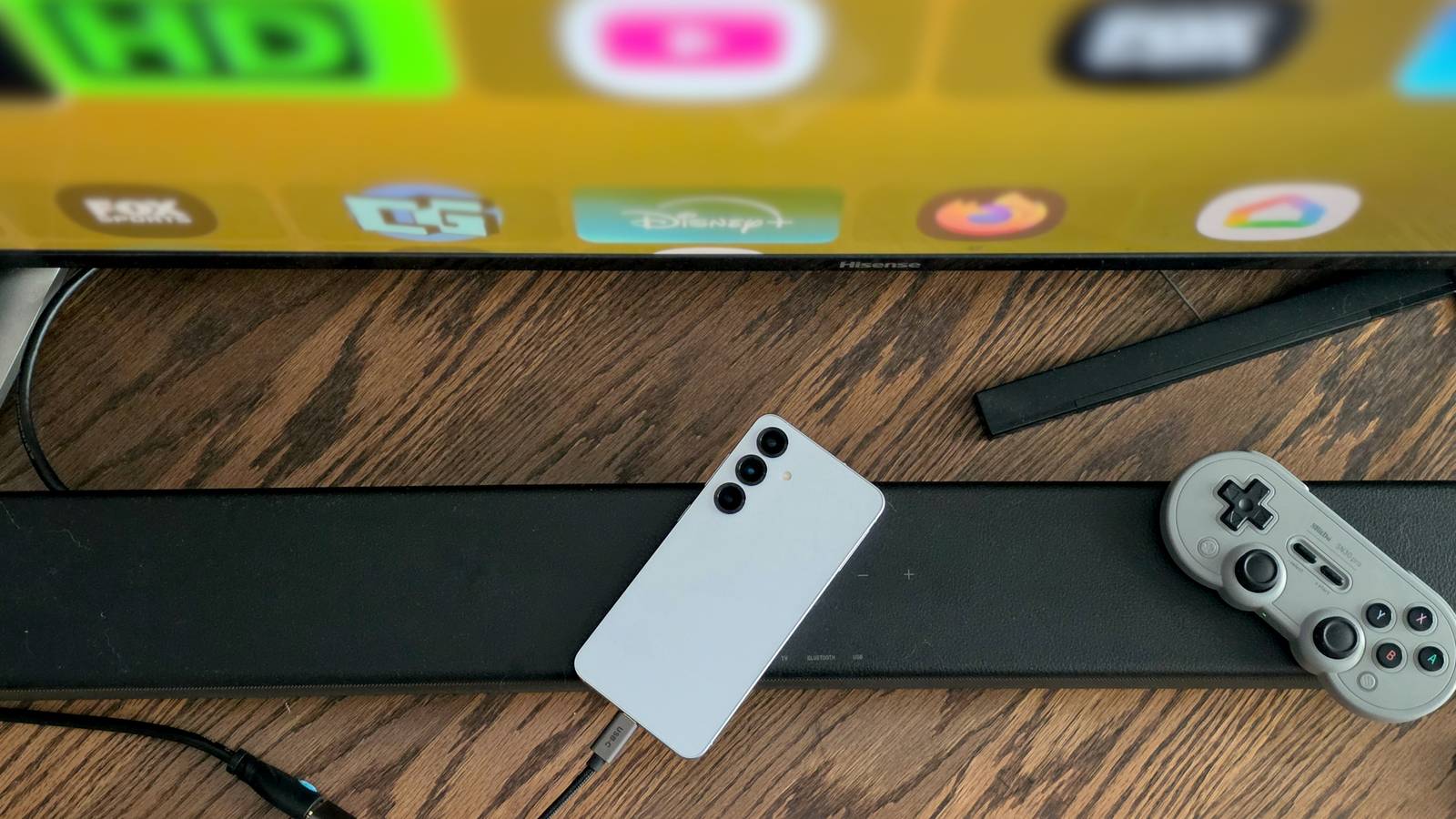
However, you may already have them on hand.First, we obviously need a way to connect the phone to the TV.The two ways to do this are with a dedicated HDMI-to-USB-C cable or a USB-C-to-HDMI adapter.
I already had an adapter, so that’s the method I used.Also, if this is something you plan on using for long periods of time, you’ll need some sort of splitter to allow for charging while plugged into the TV.Close Next, you’ll need some way to control the phone without actually touching it.
There are several ways to do this.If you own a wireless gaming controller, there’s a good chance you can use that.Some Xbox controllers work over Bluetooth and can be connected to Android phones.
I already had an 8BitDo SNS30 Pro, so that’s what I used.For those who are starting from scratch, I would recommend a wireless keyboard with a built-in trackpad—sometimes marketed as a “TV keyboard.” This will work better than a gaming controller, as I’ll explain later.With hardware out of the way, let’s talk about apps.
First and foremost, we need a TV-friendly home screen launcher.Thankfully, one of the best Android TV home screen replacements—Projectivity Launcher—works on phones, too.Go ahead and download it from the Play Store, set it as the default home app, and configure it to your liking.
It’s extremely customizable.Next, if you’re going the gaming controller route, you’ll want an app called Gamepad Mouse.The one thing I couldn’t figure out how to do with my controller was type on the virtual keyboard—that’s why a wireless keyboard is better.
This app allows me to switch to cursor mode in the situations when phone-Android doesn’t work quite like TV-Android.That’s really all you need to get started, but I’ll recommend a couple of quality-of-life apps to make the experience even better.Button Mapper is an excellent app for reprogramming physical buttons, and it works with controllers as well.
I used to map a button on my gamepad to “Home.” Second, to ensure all apps are displayed in landscape mode, I installed and enabled Screen Orientation Control.It works surprisingly well There’s nothing to it There’s one important thing to do before you start streaming.Some Samsung Galaxy phones have a feature called “DeX.” It enables a desktop-like UI when the phone is connected to an external display, such as a TV.
DeX is great for certain situations, but I personally didn’t like it as a TV UI.Thankfully, all you need to do is make one little change to fix this.With your Galaxy phone connected to the TV, go to Settings > Connected devices > Samsung DeX.
Select “Connected display” and switch to “Mirrored.” Now, you’ll see your phone’s display on the TV.Close Technically, this is all you need to do, but I didn’t like how big the phone UI looked on my TV.I went into the Developer Options and tweaked the “Minimum width” setting.
This essentially determines how big or small Android thinks your screen is.I found that bumping the number up to “720” made One UI look a lot more like a TV-optimized interface.Close Would you have guessed the screenshots in this article were from a phone if you hadn’t been told? I was surprised by how quickly it felt like a Fire TV or Google TV device.
The gaming controller works for 95% of my navigation, and the Gamepad Mouse app comes in clutch for the other 5%.I wouldn’t recommend keeping the phone plugged in and mirroring 24/7, but for occasional use, it’s a pretty cool setup.
Read More