SSDs are fantastic, but they're not immortal.They can fail even at 100% health.How can you tell whether your SSD is just having a bad day or it belongs in a e-waste recycling center? SSDs have a finite lifespan, that's true.
Sometimes, problems with your SSD may be worth fixing, but other times, you should get your files ASAP and let go.Here's how to figure out which is which.A logical failure doesn't necessarily mean your SSD is 100% toast The data can be gone, but your drive might be okay Close I currently own close to 10 different SSDs, and over the years, I've owned a whole bunch more.
The signs of SSD failure are always there (although I've missed them more than once), but sometimes, they're so insignificant that you won't notice until it's too late.More importantly, an SSD can stop working properly even when there's literally nothing physically wrong with the drive itself.Yes, that does make troubleshooting heaps of fun.
The NAND flash memory inside your SSD and the controller can die, but even if they don't, your files can still be in jeopardy thanks to issues such as a corrupted file system or a damaged partition table.Broken boot information or an accidentally deleted partition can wreak some real havoc, too.But those things won't necessarily kill your SSD stone dead (although corruption is never good).
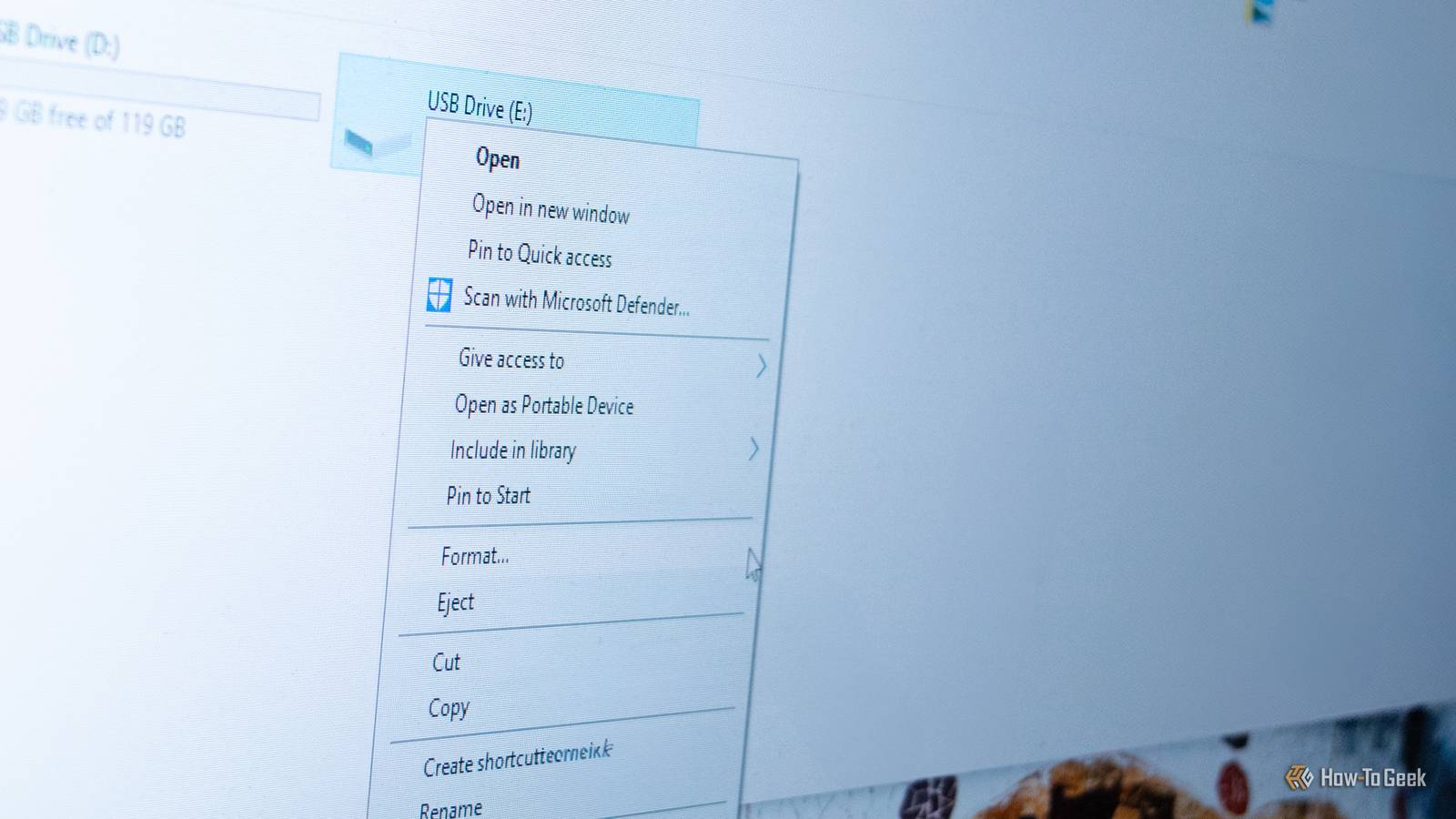
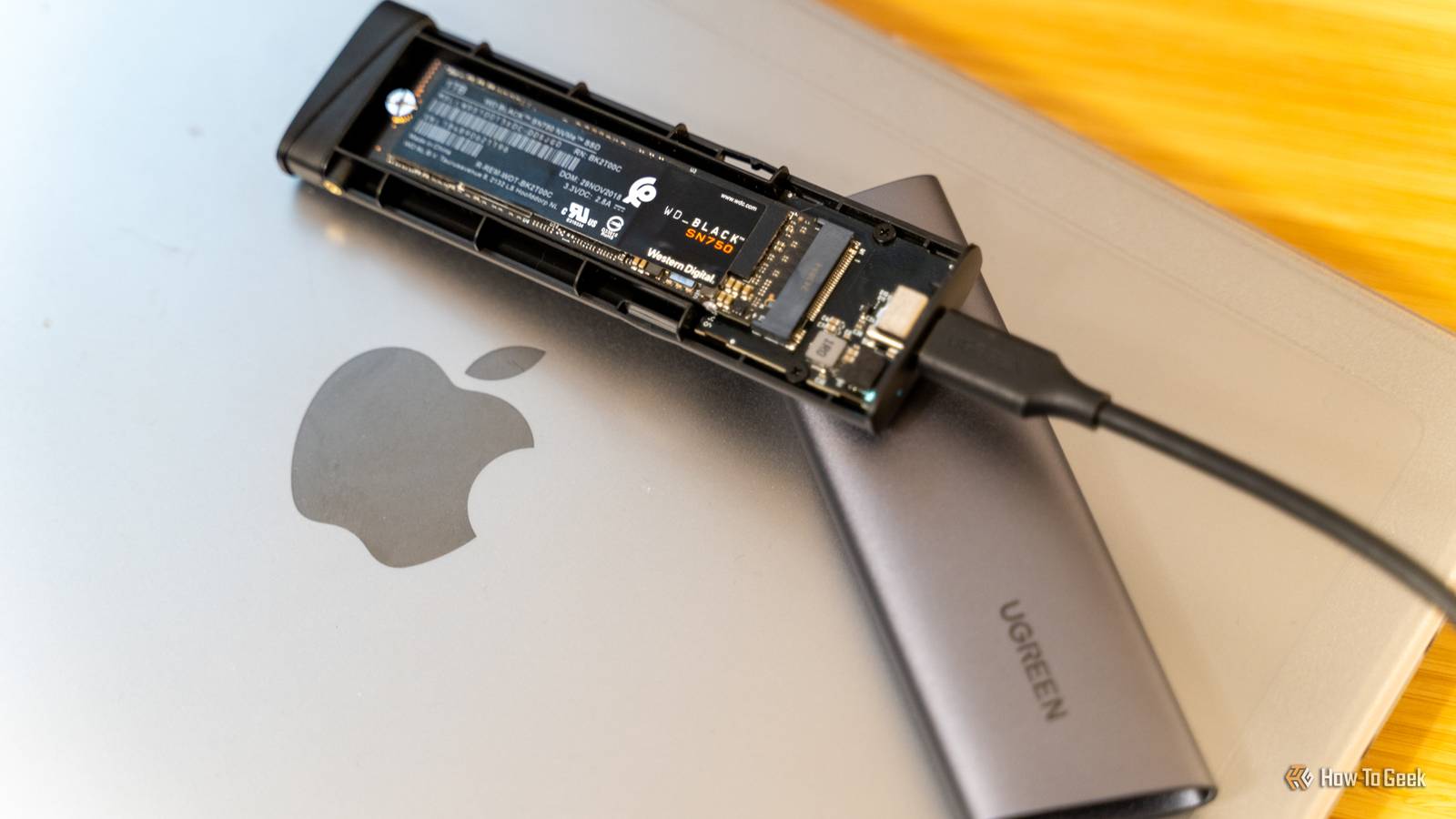
Those issues can look like hardware failure at first, though.Your SSD may refuse to boot, open files, or show up in your OS.However, even if your OS can't access the files, the SSD may still show up in BIOS or an SSD health utility such as GSmartControl.
That could be a good sign.Related Your unpowered SSD is a ticking time bomb Long-term cold storage on an SSD could be a risky business.There are better options.
Posts By Monica J.White Logical SSD failures can be fixable No promises, but it can be worth a try The difference boils down to where your SSD is actually failing.Logical failures mean that your SSD's insides are still A-OK.
Your drive can read and write data, in theory, but the structures that tell your OS what the data is and where it's at may have been damaged.Detection is pretty spotty here, as I mentioned.The drive may show up in some places but show its volume as RAW or unallocated, or it may not show up at all.
If you're seeing it in some places, it's worth digging deeper, as it might be a logical problem rather than dead NAND or a completely failed controller.What do you do in this situation? First, secure your files.If you follow the 3-2-1 backup rule, you probably have copies upon copies of the stuff already, but if not, the important thing is getting them out.
For that, you have to hold off with formatting, initializing, or repartitioning the SSD, because that just makes data recovery harder.If at all possible, connect the SSD and transfer the files the way you normally would, or contact a data recovery service if you can't do it at home.Once you've gotten your files to a safe place, you can try to repair the underlying problem (unless you used that recovery service, I guess).
For file system corruption, running a simple chkdsk may help, but damaged partitions may need partition recovery software, while a broken boot drive might only need you to reinstall the OS or repair the boot files.But if you've backed up your data, you might as well use the nuclear method and wipe the SSD clean, repartition, and reformat it.Physical failure, on the other hand ...
That doesn't sound too good It'll come as no surprise that fixing physical faults with the SSD is harder for most people.Any number of things can go wrong; it might be overheating; the controller can fail; NAND flash cells wear out over time, so that could be the reason, too.When that happens, it most likely won't matter if you format the drive, because the underlying problem will still exist.
SSD issues can crop up over night and end up in full-blown disaster right away, but you might also notice issues over time, such as freezes, crashes, or errors when copying data, or even problems with getting your PC to actually boot.Less obvious signs? The SSD may keep disappearing from the BIOS, suddenly switch to read-only mode, or report SMART warnings when you check.One thing is for sure, though -- once it gets that bad, you will notice, believe me.
At that point, I don't have a lot of advice for you.If you suspect physical hardware failure, a professional data recovery service is your best bet, unless you know how to fix those problems yourself (in which case you're probably not reading this article).Copy the data if you can, and try to salvage whatever's possible.
One caveat! If you're using an external SSD, try using it in a different port, enclosure, cable, or even an entirely different PC.Sometimes, the issue might not even be the drive itself.SMART monitoring isn't flawless, but it's worth it When it comes to HDDs, a recent study shows that many of them fail in year one.
SSDs can, too, and you might not even notice despite monitoring with tools like CrystalDiskInfo or GSmartControl.Sure, SMART data can miss SSD failure.You may not see any signs and still end up with a thoroughly cooked SSD.
But you know what? Checking is still better, so that's your best bet for preventing these types of problems.Give your SSD a health check once a month or two; who knows, you might spot failure before it actually strikes.Samsung 9100 PRO $400 $680 Save $280 7 Storage capacity 1TB, 2TB, 4TB, 8TB If your old SSD is basically dead and gone, the Samsung 9100 Pro is what I like to recommend for demanding users.
You can't go wrong with this one.Hardware Interface M.2 NVMe $400 at Amazon $400 at Best Buy Expand Collapse
Read More