Android Auto feels pretty great straight out of the box.I can't lie that it impressed me the first time I tried it out in a new car.It instantly makes navigation and media feel a lot more intuitive and integrated than a standard phone mount or factory navigation system ever could.
But like with the rest of Android, part of Android Auto's real strength comes from customization.The default layout and settings make sense, but they're not optimal for every driver.Fortunately, there are a handful of options you can adjust ahead of a road trip to make your driving experience smoother, safer, and in line with how you wish to use your phone on the big car screen.
Make Android Auto connect automatically as you enter the car Get in, start the car, and go For many of us, Android Auto isn't just a convenient feature that our cars' infotainment systems have; it's the default mode of operation.Whether it's Google Maps, Spotify, podcasts, or weather, Android Auto has practically everything you need for your trip.But if you're still connecting your phone to your car's head unit manually every time you get in, you're missing out on one of its most useful features.
You can set Android Auto to take over automatically as soon as your phone connects to your car.It's incredibly convenient, especially when you're getting into a car after taking a break and forget to set things up before you drive off.Your navigation and entertainment are ready and waiting for you before you even take your phone out of your pocket.
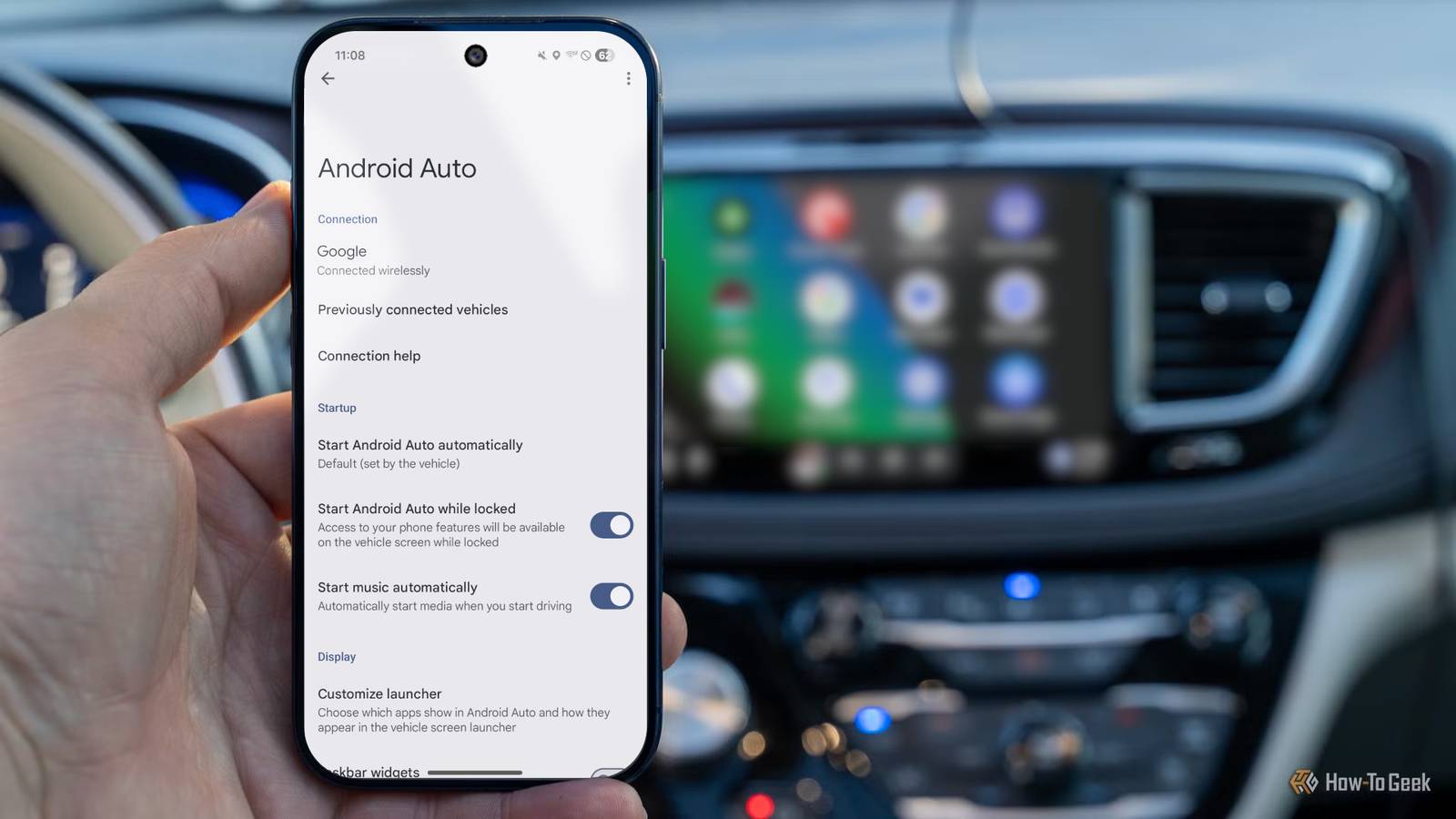
AAWireless TWO+ Dongle Type Android Auto & Apple Carplay adapter What's Included Adapter, USB-C to USB-A cable Easily add wireless Android Auto or CarPlay to your vehicle with this capable dongle that works with both platforms. Connectivity Bluetooth & Wi-Fi Dimensions 5.5 × 3.5 × 1.5 cm $65 at AAWireless Expand Collapse To make your phone connect automatically, head over to your phone's settings.In the search bar, type "Android Auto" and tap the option when it appears.From here, you can access all the Android Auto settings we'll be adjusting in this article.
Tap Start Android Auto automatically and select Always.If you share your car with your family, you might want to select the If used on the last drive option instead.This ensures that if a family member was the last one driving, your phone won't take over the connection the next time you start the car together.
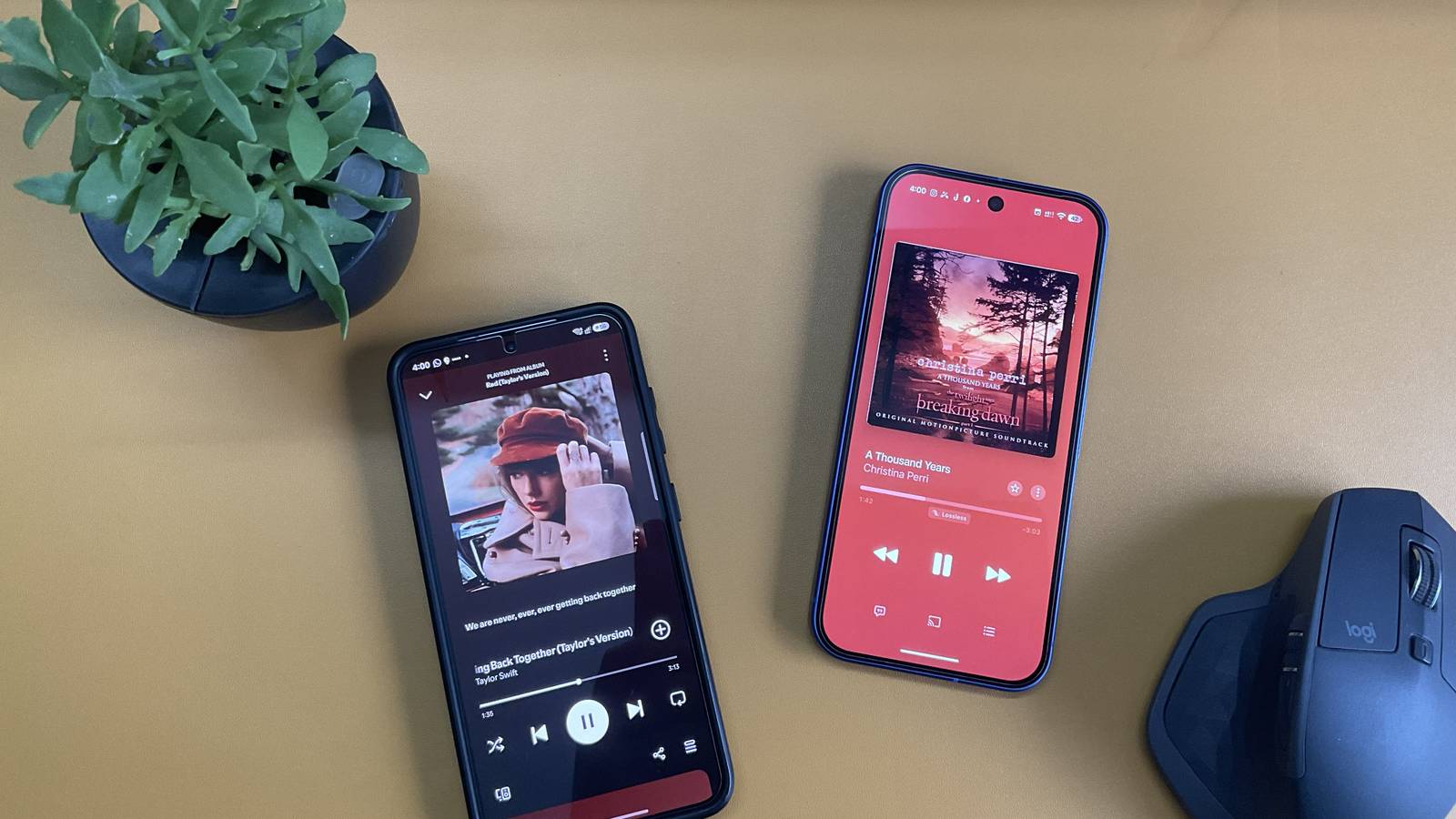
Stop music from blasting away on its own Stop the sudden audio surprises when you turn the ignition on While you might want Android Auto to start automatically with your car, you probably don't want it to automatically start blasting heavy metal music you listened to half an hour ago before stopping for coffee (especially if you forgot to turn the volume down).I've had my fair share of mini heart attacks turning my car on in a quiet residential area in the middle of the night.Related I finally found a local music player that works with Android Auto voice commands, and it's freed me from Spotify I've managed to quit most of my subscriptions.
Posts By Nick Lewis The good news is that you can keep the convenience of an automatic connection without the surprise by stopping music from automatically playing when your phone connects to your car.To do this, open Android Auto settings and disable Start music automatically.Close Customize your launcher layout for easier access to important apps Organize apps around how you actually use them while you drive One of the most common annoyances I ran into when I first started using Android Auto was not being able to quickly find the apps I actually wanted.
Although Android Auto only shows apps that are compatible with the platform, if you have a lot of them installed, the app launcher can still get incredibly cluttered while you’re driving.To adjust it, open Android Auto settings and find the Customize launcher option.From here, you can hide apps that you don't typically use while driving.
Next, reorder the remaining ones so your most important apps are easy to reach by holding and dragging the six dots next to each app.It might seem difficult to get used to the new layout, but over time, you'll build the muscle memory to open apps with minimal distraction while keeping your focus on the road.And when you’re on a longer road trip and constantly switching between apps to stay entertained, you’ll find that having your favorite apps just a quick tap away is much more convenient.
As an extra tip, you can also add custom shortcuts in this menu for things like calling specific contacts or triggering Gemini actions, such as opening the garage door, reading recent messages, or controlling smart home devices.Configure your message notifications to stop interrupting your drive Keep focus on navigation, music, and driving Message notifications, particularly those from group chats, can be distracting when you’re driving.I don’t personally mind the visual cues on the screen, but the chimes that play with each notification are incredibly annoying—especially when they cut in during a song I’m enjoying.
Fortunately, you can adjust these to your preferences.In Android Auto settings, scroll down to the Messaging section.I recommend disabling Show group conversations and Play message chimes altogether.
If you want to go further, you can turn off Show message notifications completely.Close A few minutes of setup can transform your driving experience I know it might not seem like it, but Android Auto is packed with customization.Setting up a few core preferences before you head off on a long summer road trip can make a real difference in how stress-free the whole experience feels.
Instead of dealing with cluttered menus and constant notification interruptions, it’s worth taking a few minutes to set things up now so you can focus on the road when the time comes.Related The 5 most annoying Android Auto problems (and how to fix them) Android Auto is awesome, but only when it works correctly.Posts 4 By Ismar Hrnjicevic
Read More