Every few months, a new Android update shows up and promises to fix my day.A One UI 8.5 feature added expiry dates to routines.Android 16 rebuilt Do Not Disturb into Modes.
Both are good additions.To be fair, Samsung's Modes and Routines already leaves Pixel's Rules far behind.But no update has ever known that my study block starts at 6 PM, or that 20% battery is already too late for me.
Updates ship features for the average person.So, expecting them to resolve my specific needs might be too much.That's why I started making automations, and it's already saving me time every day.
My phone goes quiet around my timetable, not around the clock Turning my nap time into a button was the whole trick My schedule is not exciting.But it is regular with some exceptions.I usually sleep from 12 AM to 5 AM, and study from 6 PM to 10 PM.
Both are predictable enough to hand over to my phone, so I did.Go to Settings > Modes and Routines.Go to the Routines tab and tap the plus icon.
Under If, add a Time period condition (it's in the Time section) with your hours and days.Under Then, switch on Do Not Disturb (DND).I also stacked Power saving and Grayscale on top of it.
That last one does more work than it sounds.When my screen drains of color at 12 AM, my brain gets the message before my hands do.Close Seasons push these hours around.
So, I need to edit the times every few months.Fortunately, knowing how Modes and Routines works on a Galaxy phone covers everything else I need to make it work.The nap is where it got interesting.
Mine usually lasts around 30 minutes without a fixed time period.So, in the Then section, I added two consecutive actions: a Wait before next action and a Read text aloud action.I initially wanted to set a 30-minute alarm, or play the alarm sound after a timer.
However, I couldn't see any setting that would let you do so, which led me to create this setup instead.Battery saver switches on at 50%, then again at 30% Waiting till the last minute never worked for me Android already lets you schedule battery saver by percentage, so on its own that is a setting rather than an automation.The custom part is splitting it in two.
The first routine fires at 50%.Under If, pick Battery level and set it to at or below 50%.Under Then, switch on Power saving.
Nothing dramatic.Just a quiet handbrake, pulled early enough to matter.The second one fires at 30% and pushes harder: Power saving on, Data saver on, brightness down, background activity tightened.
By the point most phones start noticing a problem, mine has been coasting for hours.I also added a Wi-Fi condition so neither routine fires at home, where I am never far from a charger.One honest note.
MacroDroid can do this too.However, its battery saver action needs a helper app or an ADB step from a PC first, with extra hoops on Android 14 and up.Samsung's own tool just does it.
Pair the routines with custom charging notifications, and both ends are covered.A Gmail filter pulls the good mail out of Promotions The most useful automation on this list does not run on my phone at all This one bothered me the longest.Every day, I was digging through the Promotions tab for the two or three emails I actually wanted.
I don't care if spam hits my inbox.But important emails in Spam or Promotions? Google must hate me a lot for doing that.Now, the annoying part.
You cannot create a Gmail filter inside the Gmail app.You have to open mail.google.com in Chrome and request the desktop site first.Once you are in, press the sliders icon in the search bar.
Type the sender's address in the From field.Click Create filter.Check three key boxes: Never send it to Spam Categorize as: Set this to Primary Also apply filter to matching conversations (to clean up your existing inbox) Close Because it runs on Google's servers instead of my handset, it survives phone swaps, factory resets, and every update Samsung sends me.
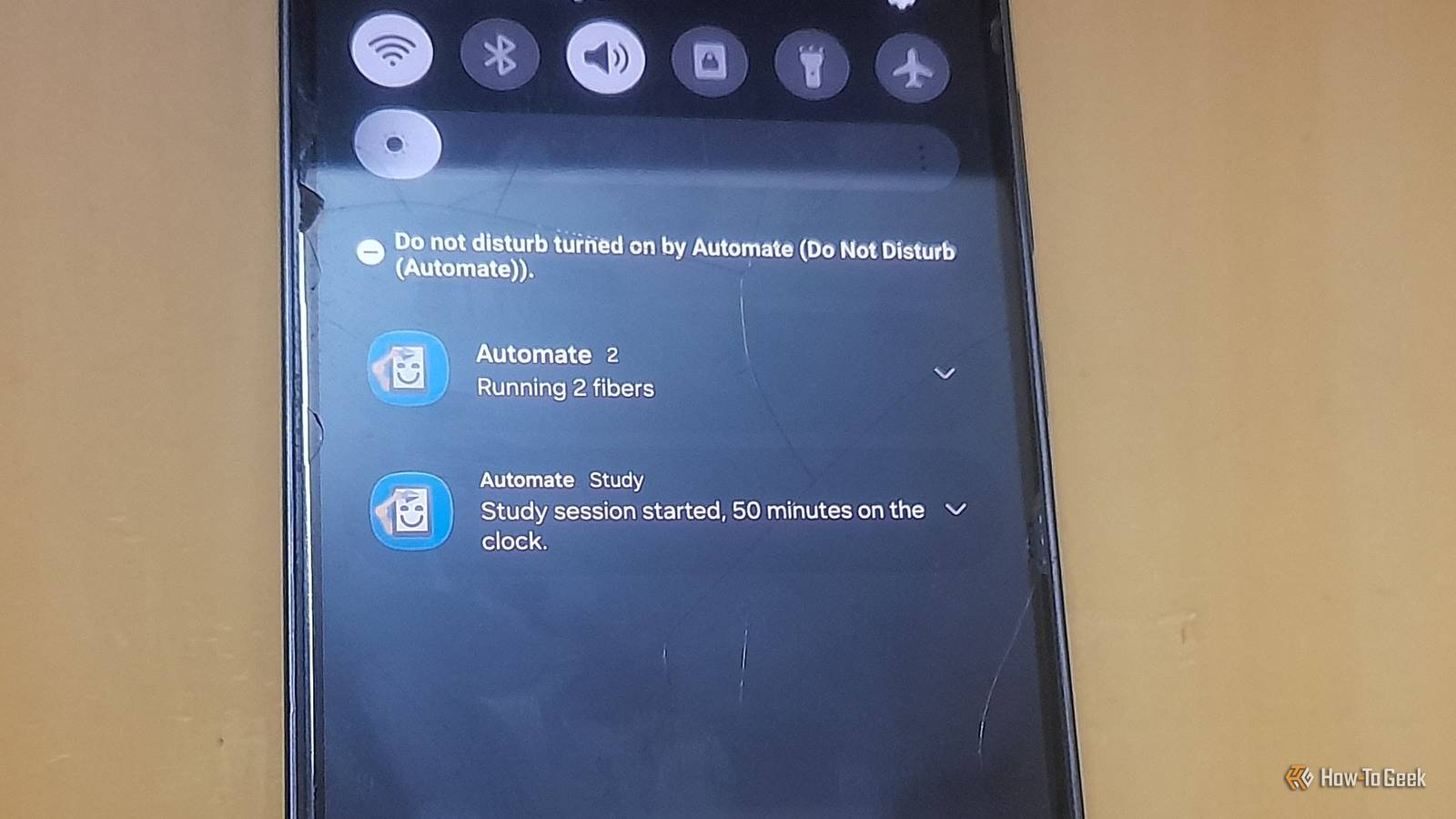
One tap starts my study session and drags me back when I wander Samsung Routines cannot loop, so this one needed a free app called Automate My 6 PM block needed more than silence.It needed a starting gun.So this flow lives in Automate, a free app that builds automations as flowcharts instead of if-this-then-that lists.
I fire it from a home screen shortcut.It opens my notes app, starts a timer, and then does what Routines cannot.It loops.
Every few minutes, the flow checks which app is in the foreground.If I have been on YouTube for 20 minutes, for example, it tells me so, using the actual number.This works on me far better than getting kicked out.
Setting up these alerts when I am using my phone too much was a game changer.The best Android update for me is the one I made myself Three of these four run on tools already sitting in my Settings app, and the fourth is free.Together they hand me back about 30 minutes a day, roughly three hours a week.
If you want more ideas worth stealing, there are plenty of other tasks you can automate on your Android phone.
Read More