Let's be honest here: digging through network settings is a truly Sisyphean task.You'll go in and fix a few, but to go through every setting on every device and reach the most optimal setup is something that's reserved for networking pros, if that.In reality, a lot of network settings, be it those tied to your router, DNS, or your PC, aren't that consequential, so there's no need to go wild and adjust each and every setting you find.
It's always worth it to try and optimize your Wi-Fi, though.In my quest to improve my internet connection, I've gone through just about every network setting possible.These four settings I'll introduce you to below are the only ones I wish I had changed sooner.
DHCP reservations Give important devices a permanent address DHCP is the system your router uses to hand out local IP addresses to devices on your network.That's all well and good, and most of the time, it's perfectly fine, because most of the devices that live on your network don't need to keep the same IP addresses forever.For instance, I don't mind if the IP address on my phone or tablet changes; I doubt I'd ever even notice.
However, this can still become a problem if you have an important device that needs to stay super predictable.You don't want the router to keep rotating the IP address on things like your NAS, Plex server, Raspberry Pi, or any other device that you often access over the local network.In those cases, giving them their own reserved IP addresses makes life so much easier.
The router still handles the address, so you don't need to fiddle with static IP settings on the device itself.It's just that it won't be handing those IP addresses out willy-nilly, basically.To change this, open your router's admin page or app and look for something like DHCP reservation, address reservation, static lease, or LAN IP reservation.
Pick the device from the connected devices list, assign it an IP address within your router's local range, and go ahead and save.Quiz 8 Questions · Test Your KnowledgeWeird WiFi and networking quirksTrivia challengeFrom bizarre range tricks to hidden protocol secrets — how well do you really know your network?WiFiProtocolsHardwareHistoryFun FactsBegin 01 / 8Fun FactsIn 2012, a small village in Wales was mysteriously losing its broadband every morning at the same time.What was the cause?AA faulty undersea cable that expanded in morning tidesBAn old TV emitting electrical interference when switched onCA neighbor's microwave running on a scheduled timerDMorning dew condensing on exposed copper telephone linesCorrect! An elderly villager's old television set was emitting a powerful electrical signal every morning when he turned it on, wiping out broadband for the entire village.
Engineers used a spectrum analyzer to track down the source after years of complaints.It's a perfect example of how everyday electronics can wreak havoc on networking signals.Not quite! The culprit was an old television set that an elderly resident switched on every morning, sending out a burst of electrical interference that killed broadband for the whole village.Engineers used specialist equipment to track it down after years of frustrating outages.Continue 02 / 8WiFiWhy does placing your WiFi router near a fish tank often degrade wireless signal quality?AThe metal frame of the tank acts as a Faraday cageBWater absorbs and attenuates 2.4GHz radio waves very effectivelyCFish produce bioelectric fields that interfere with radio signalsDThe tank's fluorescent lighting creates electromagnetic noiseCorrect! Water is a surprisingly effective absorber of 2.4GHz radio waves, which is the same frequency used by most WiFi routers.
This is actually the same principle microwave ovens use to heat food — the frequency is tuned to excite water molecules.A large fish tank can create a significant dead zone behind it for WiFi signals.Not quite! The answer is water absorption.Water molecules absorb 2.4GHz radio waves very efficiently — it's the same reason microwave ovens cook food at that frequency.
A large fish tank can significantly dampen your WiFi signal, creating dead zones on the other side of it.Continue 03 / 8HistoryThe term 'WiFi' is often believed to stand for 'Wireless Fidelity', but what is the actual origin of the name?AIt was an acronym coined by the IEEE standards committee in 1997BIt was invented by a marketing firm as a catchy brand name with no true meaningCIt derives from the Japanese term 'Wi-Fai', meaning wireless connectionDIt was named after Wi-Fi pioneer Victor Fidelity HayesCorrect! 'WiFi' was coined by a branding consultancy called Interbrand in 1999, hired by the Wireless Ethernet Compatibility Alliance.It was designed purely as a marketable, memorable name — not an acronym.The 'Wireless Fidelity' backronym was actually invented afterward to give the name a plausible meaning, and even the Wi-Fi Alliance has admitted the term has no real meaning.Not quite! WiFi was invented by a branding company called Interbrand as a catchy, memorable marketing term with no underlying meaning.
The popular explanation that it stands for 'Wireless Fidelity' was actually created after the fact as a retronym, and even the Wi-Fi Alliance has acknowledged the name doesn't technically stand for anything.Continue 04 / 8ProtocolsWhat is the maximum theoretical speed of the original 802.11 WiFi standard released in 1997?A11 MbpsB54 MbpsC2 MbpsD10 MbpsCorrect! The original 802.11 standard from 1997 topped out at just 2 Mbps — barely enough to stream a low-quality video today.It feels almost laughably slow compared to modern WiFi 6E speeds that can exceed 9 Gbps in ideal conditions.The jump in wireless speeds over just 25 years is one of the most dramatic improvements in consumer technology history.Not quite! The original 802.11 standard could only manage 2 Mbps — painfully slow by today's standards.
The 11 Mbps speed came with 802.11b in 1999, which was a big deal at the time.Modern WiFi standards have improved speeds by over 4,000 times compared to that humble beginning.Continue 05 / 8HardwareWhich common household appliance is most notorious for interfering with 2.4GHz WiFi networks?AA refrigerator compressor motorBA microwave ovenCA plasma televisionDAn electric kettleCorrect! Microwave ovens operate at approximately 2.45GHz, sitting almost exactly on top of the 2.4GHz WiFi band.When running, a microwave leaks enough radio frequency energy to noticeably disrupt nearby WiFi connections.
This is one of the main reasons the 5GHz WiFi band became popular — it completely avoids this kitchen interference problem.Not quite! Microwave ovens are the biggest culprit.They operate at around 2.45GHz, almost identical to the 2.4GHz WiFi frequency band.Even a well-shielded microwave leaks enough signal to cause noticeable interference.
Switching to the 5GHz band on your router completely sidesteps this issue.Continue 06 / 8Fun FactsWhat unusual material was found to dramatically boost WiFi signal strength in experiments by researchers at Dartmouth College?AAluminum-coated wallpaperB3D-printed plastic reflectorsCGraphene-coated glass panelsDCopper mesh window screensCorrect! Researchers at Dartmouth College discovered that custom-shaped 3D-printed plastic reflectors, coated in a thin layer of metal, could dramatically focus and redirect WiFi signals throughout a space.The reflectors could boost signal strength in desired areas by up to 55% while simultaneously reducing signal in areas where security or privacy was needed.It's a remarkably cheap solution using off-the-shelf printing technology.Not quite! Dartmouth College researchers found that 3D-printed plastic reflectors with a metallic coating could focus WiFi signals like a lens, improving signal strength by up to 55% in targeted areas.
The approach also has a useful privacy angle — you can intentionally block signal from going outside your walls without expensive equipment.Continue 07 / 8ProtocolsWhat does the 'ping' command measure, and where does the name actually come from?APacket integrity — named after the sound of a sonar pulseBRound-trip signal time — named after the sound a submarine sonar makesCPort availability — it's an acronym for Packet InterNet GroperDNetwork bandwidth — named after the creator Mike Ping at MITCorrect! Ping measures the round-trip time for a data packet to travel to a host and back, measured in milliseconds.The name is inspired by sonar technology used in submarines — when sonar emits a pulse and 'hears' it bounce back, operators call that a ping.The networking tool was written by Mike Muuss in 1983, and he explicitly confirmed the sonar analogy was intentional.Not quite! Ping measures round-trip latency — how long it takes for a packet to go to a destination and come back.
The name comes from submarine sonar, where a sound pulse sent out and detected returning is called a 'ping.' Creator Mike Muuss confirmed this analogy in 1983 when he wrote the tool, though the 'Packet InterNet Groper' backronym was invented later.Continue 08 / 8WiFiWhat phenomenon causes WiFi speeds to mysteriously slow down when many neighbors are using their networks simultaneously, even if you're not sharing bandwidth with them?AIP address collisions caused by overlapping DHCP poolsBChannel congestion from competing radio signals on the same frequencyCDNS server overload from too many simultaneous lookup requestsDMAC address flooding causing router memory overflowCorrect! WiFi operates on shared radio frequency channels, and nearby routers broadcasting on the same channel compete for airtime even between separate networks.This is called co-channel interference, and it causes routers to 'take turns' transmitting more often, reducing effective throughput.Using a WiFi analyzer app to find the least congested channel — or switching to the less crowded 5GHz or 6GHz bands — can significantly improve speeds in dense neighborhoods.Not quite! The culprit is channel congestion.
WiFi channels are shared radio spectrum, and when many nearby networks use the same channel, they all have to take turns broadcasting — slowing everyone down even though no one is stealing your bandwidth.A WiFi analyzer can help you find a quieter channel, and moving to 5GHz or 6GHz usually helps escape the congestion.See My Score Challenge CompleteYour Score/ 8Thanks for playing!Try Again Router-level DNS Stop adjusting it one device at a time DNS is the system that turns website names into the addresses your devices can actually use.In practice, it's one of those things most people never fiddle with, and those who do will just do it once and call it a day.
It's more likely that you'll run into private DNS settings on a particular device and try to adjust those instead.The problem starts if you choose to get adventurous and change DNS settings on a per-device level.You might end up with entirely different settings across multiple devices, and if something goes wrong, you'll be stuck in troubleshooting purgatory for the foreseeable future.
No one likes that.That's why I prefer setting DNS at the router level instead.It keeps most of the devices on your network using the same DNS provider by default, which really cuts back on that annoying troubleshooting time.
To change it, open your router's admin page or app and look for DNS, WAN DNS, Internet Settings, or DHCP server settings.From there, swap the automatic DNS servers for the ones you want to use, such as Cloudflare, Google Public DNS, Quad9, NextDNS, or AdGuard DNS.Save and reboot.
TP-Link Dual-Band BE6500 Gaming Router Supported standards 802.11.be, 802.11ac, 802.11ax, 802.11g, 802.11n Speeds 6500 Megabits Per Second If you're not too happy with the state of your network, a new router might do the trick.This TP-Link Archer GE400 model will have you sorted in terms of future-proofing.$220 at Amazon Expand Collapse Guest or IoT network Your smart devices don't need VIP treatment A separate guest or IoT network is one of those things that sounds way overkill until you remember just how many random, often not-so-protected devices are mooching off of your Wi-Fi.
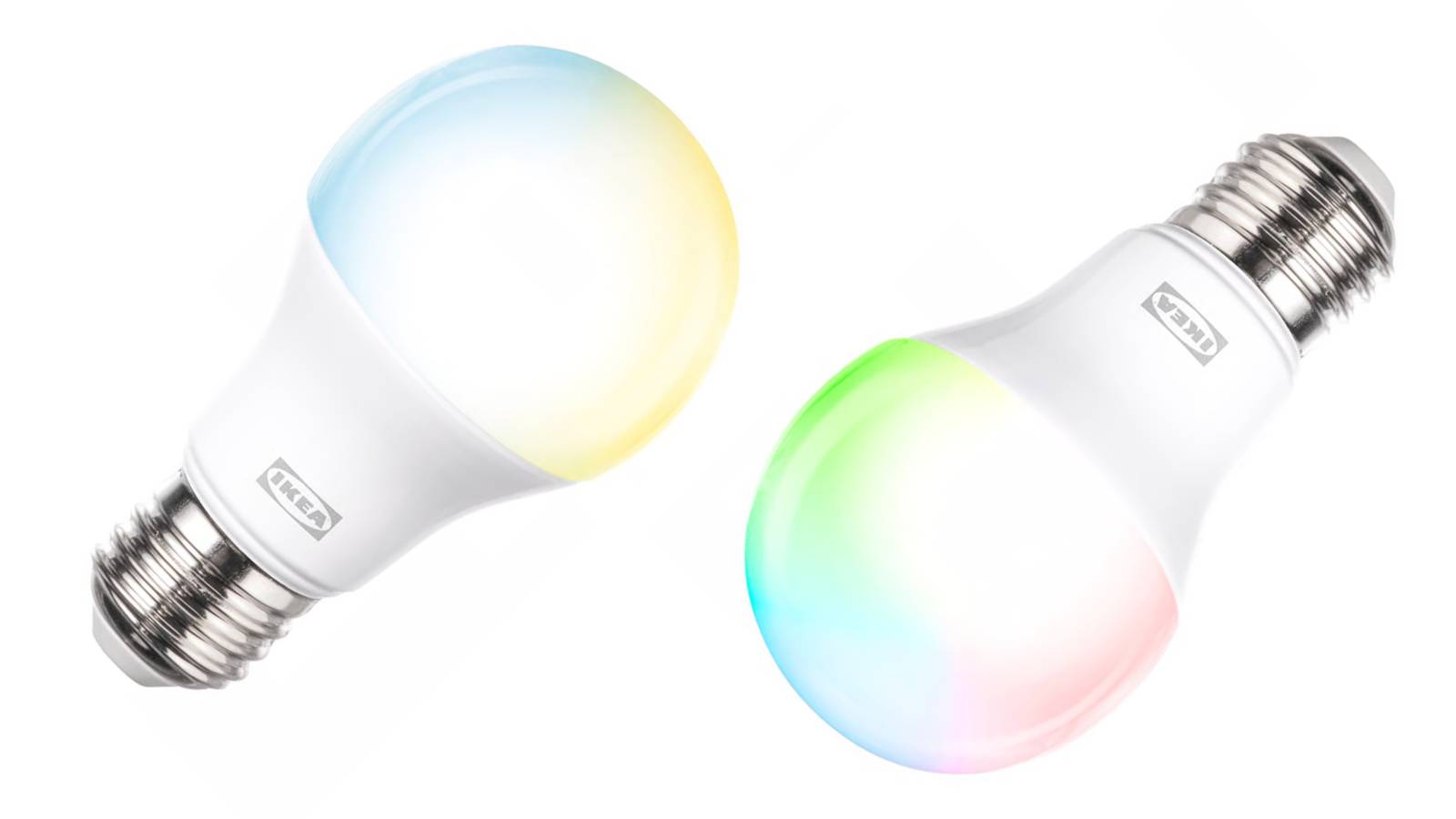
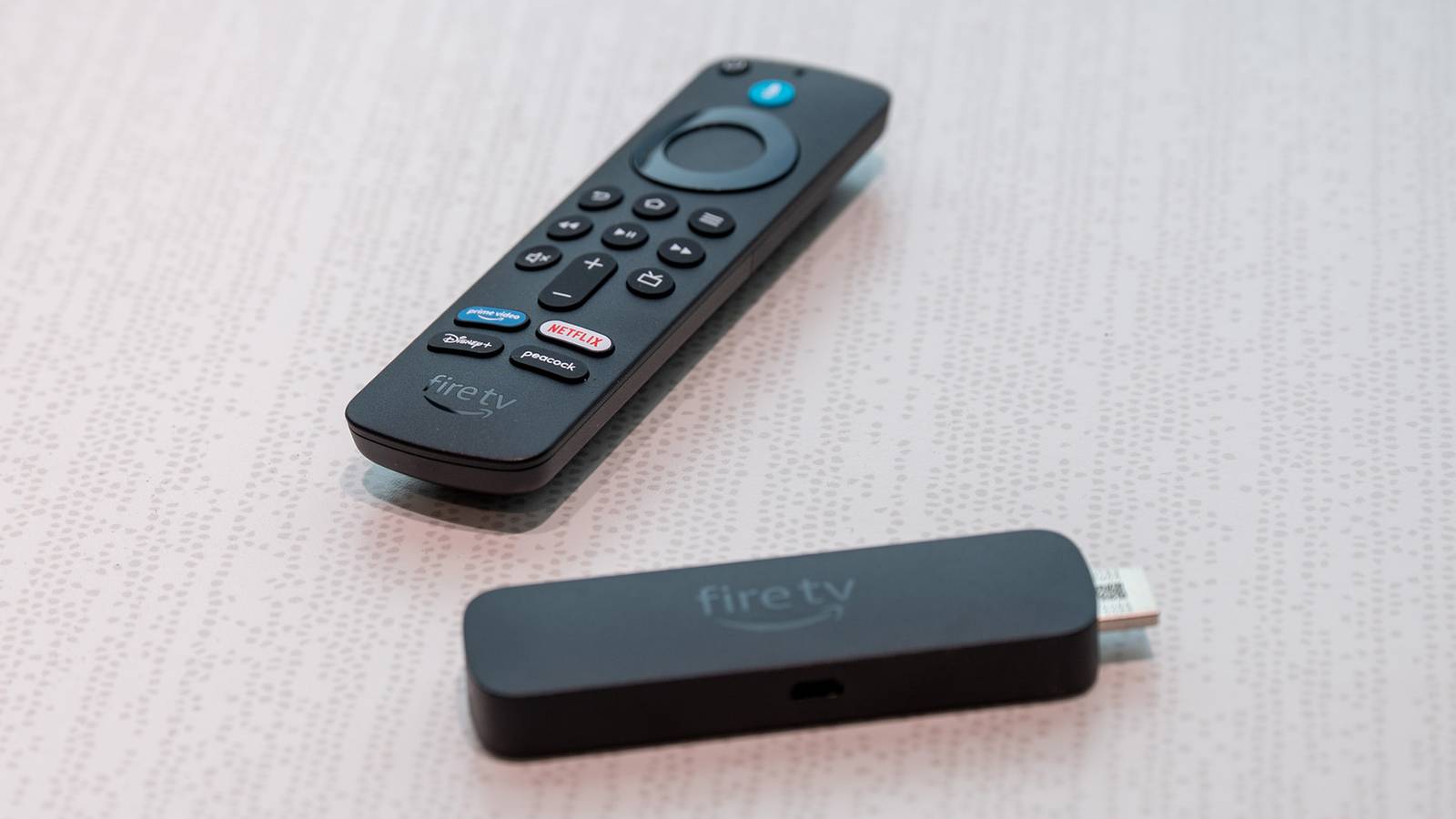
Smart bulbs, plugs, speakers, a Roomba here, an Amazon Fire TV Stick there … you get my point.They all want internet access, but they don't need the full VIP access the way your PC or your NAS does.A lot of smart home gear only needs to reach the internet and maybe talk to its own app; it doesn't need to poke around the rest of your local network.
Keeping those devices on a separate network can help reduce how much they can see.Changing this means having to open the router admin page and look for Guest Network, IoT Network, Smart Home Network, or something along those lines.Create a separate network name and password, then move devices that only need internet access over to it.
Just be careful with devices you use for casting, printing, local file sharing, or smart home control, because isolating them too aggressively can stop them from talking to the devices they actually need to work with.Related The forgotten network setting making your internet feel slow Stop blaming your router for slow website loading times Posts 2 By Monica J.White WPS and UPnP Convenience is not always your friend WPS and UPnP are both super useful, but they each carry some major caveats that are hard to overlook.
WPS is the setting that lets you connect devices to Wi-Fi without typing the password the normal way, usually through a button press or a PIN.UPnP, meanwhile, lets devices and apps request network access automatically, which can be handy for consoles, multiplayer games, voice chat, and certain peer-to-peer apps.The problem is that I don't want my router being that helpful, not unless that's actually my intention.
WPS is the easier one: if you're not actively using it to add new devices, turn it off in your router's Wi-Fi or security settings.UPnP is a little trickier, because turning it off can break things like game matchmaking or remote access, but it's still worth checking under Advanced, NAT Forwarding, Port Forwarding, or WAN Settings.The best network upgrades are sometimes the easiest ones to tweak A better home network doesn't mean you have to spend upward of $500 on a high-end router (although that certainly won't hurt).
It's more about making the most of what you already own.There are some hidden treasures to be found within networking settings, so I encourage you to explore them, but tread carefully: if you're not sure, look it up online first.UniFi Dream Router 7 9 Supported standards 802.11a/b/g/n/ac/ax/be Speeds 5.7 Gbps The Unifi Dream Router 7 is a great pick if you want to run a more demanding network.
$295 at B&H Photo Video $279 at Unifi Expand Collapse
Read More