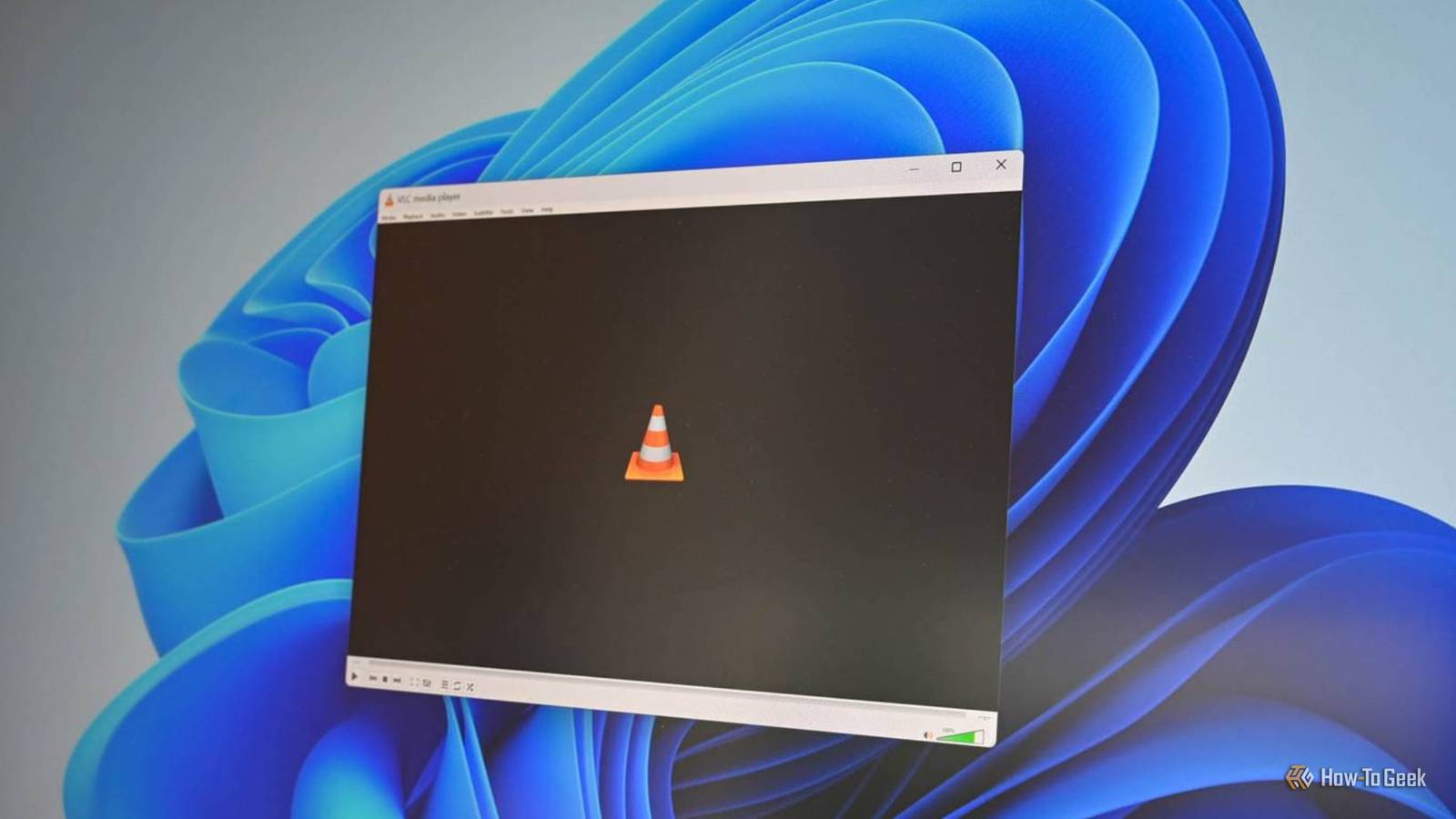
VLC has been around since 1996, when Google and YouTube didn’t exist.For nearly three decades now, the orange traffic cone has remained a familiar sight on computers.Several media players and file formats have come and gone, but VLC quietly keeps doing what it does best: playing media without asking you to pay.
That longevity isn’t about nostalgia.VLC began as a student project before becoming open-source software that now works across Windows, macOS, Linux, iOS, and Android.Beyond just handling audio and video formats, it also bundles a collection of built-in tools that don’t require separate plugins or apps.
It’s free with no strings attached VLC’s biggest advantage is easy to overlook As an open-source media player, VLC’s development is community-driven.It doesn’t have any ads, spyware or user tracking, and no premium tier waiting behind a paywall.You install it once, and it stays out of your way, which is exactly what a media player should do.
This is refreshing, as many apps today come with subscriptions, bundled extras, and unnecessary distractions.It is available cross-platform, so you get the same familiar experience across different devices and operating systems.So, if you switch between devices, you don’t need to learn an entirely new application just to play media files.
VLC fixes playback problems in seconds Equalizer, filters, and sync controls VLC comes with an equalizer, adjustable playback speed, and video adjustments.Most people never touch these settings, but sometimes the problem isn’t the video itself but the way it plays.The audio might be too quiet, the speed might not suit you, or the subtitles might appear before or after a dialogue.
To fix these problems, the controls are already there.If the audio and video fall out of sync, VLC’s synchronization controls let you adjust their timing directly using keyboard shortcuts, without digging through menus.Additionally, many times, subtitles don’t always cooperate with the video.
Rather than using a separate editor, you can load an external subtitle file, adjust its appearance, and synchronize it with the video.None of the features are locked behind a paid upgrade, so you get power-user controls without leaving the player.Instead of abandoning a video or searching for another utility, you can make adjustments while watching it.
Play network streams directly Skip the download and play in place Close VLC began life as a streaming project, and that heritage still shows.For many, the media player is associated with opening videos stored locally on a computer.But it can also play supported network streams, so you don’t need to download large media to your Downloads folder.
You can access the relevant option by navigating to Media > Open Network Stream and entering the supported stream URL.This is quite an advantage if you keep your library on a home server, another computer, or a compatible network-attached storage device and want to play it without having to copy everything to your machine.So VLC offers considerable flexibility compared to a player limited to files stored on your device.
However, it’s important to note that this doesn’t mean VLC can play every subscription streaming service or bypass its access restrictions.It depends on the source, protocol, and any authentication requirements.It can rescue videos that are too quiet A useful volume boost with a catch VLC has historically allowed cranking the standard volume as high as 200 percent.
This helps you deal with a problem where the video is barely audible even though the computer’s volume is turned up.You can simply adjust the volume slider to increase the playback level beyond 100 percent.However, it’s worth noting that a high volume can introduce distortion, and the result depends on the original recording and your audio hardware.
Still, when the video is too quiet, VLC’s volume boost can save you from struggling to hear every other line of dialogue.VLC plays nearly any file you throw at it Fewer codec headaches Using VLC means the ability to play a wide range of audio and video formats such as MP4, MKV, AVI, MP3, FLAC, along with DVDs and Audio CDs.You won’t run into unsupported file format errors, install a codec, or convert the file just to watch it.
Much of the decoding support it needs is already built-in, so you can open the file and get on with watching it on the first try.VLC is simply a dependable first choice when another media player refuses to cooperate.Doubles as a handy media converter No need for separate software VLC isn’t a full-fledged video editor, but its built-in media tools can handle basic media conversion.
You can take a supported audio or video file and save it in another format or encoding profile.To do this, you can add your file in VLC, navigate to Media > Convert / Save to transcode a video into another format.You can shrink a clip you want to email or pull the audio out of a video.
The exact options vary depending on the VLC version and platform.For straightforward tasks, it’s a handy feature to have built into a player that you already use every day.Why VLC remains hard to replace Plenty of media players look slicker, making VLC’s interface feel dated.
But VLC’s strength has never been polish.It’s simply about reliability, privacy, compatibility, and control when something goes wrong without paying a dime.You might not use every feature VLC offers, but they can make a real difference when necessary.
The straightforward approach works neatly, and it’s why after 30 years, VLC remains a media player most people never need to replace.Related 4 open-source Windows apps that are better than their paid rivals Some of the best apps you can get for Windows won't cost you a cent.Posts 16 By Nick Lewis
Read More