I started tweaking my Android Auto settings because I was getting a little tired of the small annoyances.My car screen felt cluttered; some things kept popping up when I didn’t need them, and I honestly couldn’t remember turning on some settings in the first place.None of it was a deal-breaker, but together, it made Android Auto less simple.
I also started noticing battery drain.After a longer drive with navigation, music, Bluetooth, and other stuff running, my phone got pretty warm and lost a noticeable chunk of battery.It wasn't about turning Android Auto into some stripped-down setup.
I just wanted my car screen to feel less busy and my phone to stop doing things I never asked it to do.Why does Android Auto need all your apps? I kicked out the apps I never used I’m pretty sure my Android Auto launcher has become a dumping ground.Apps sat there that I had used once, forgot about, and never touched again.
In my case, it was mostly all my music apps.I don’t need three different music or podcast apps staring back at me when I only use Spotify, and I definitely don’t want to scroll through apps I never open from my car screen.So I cleaned it up.
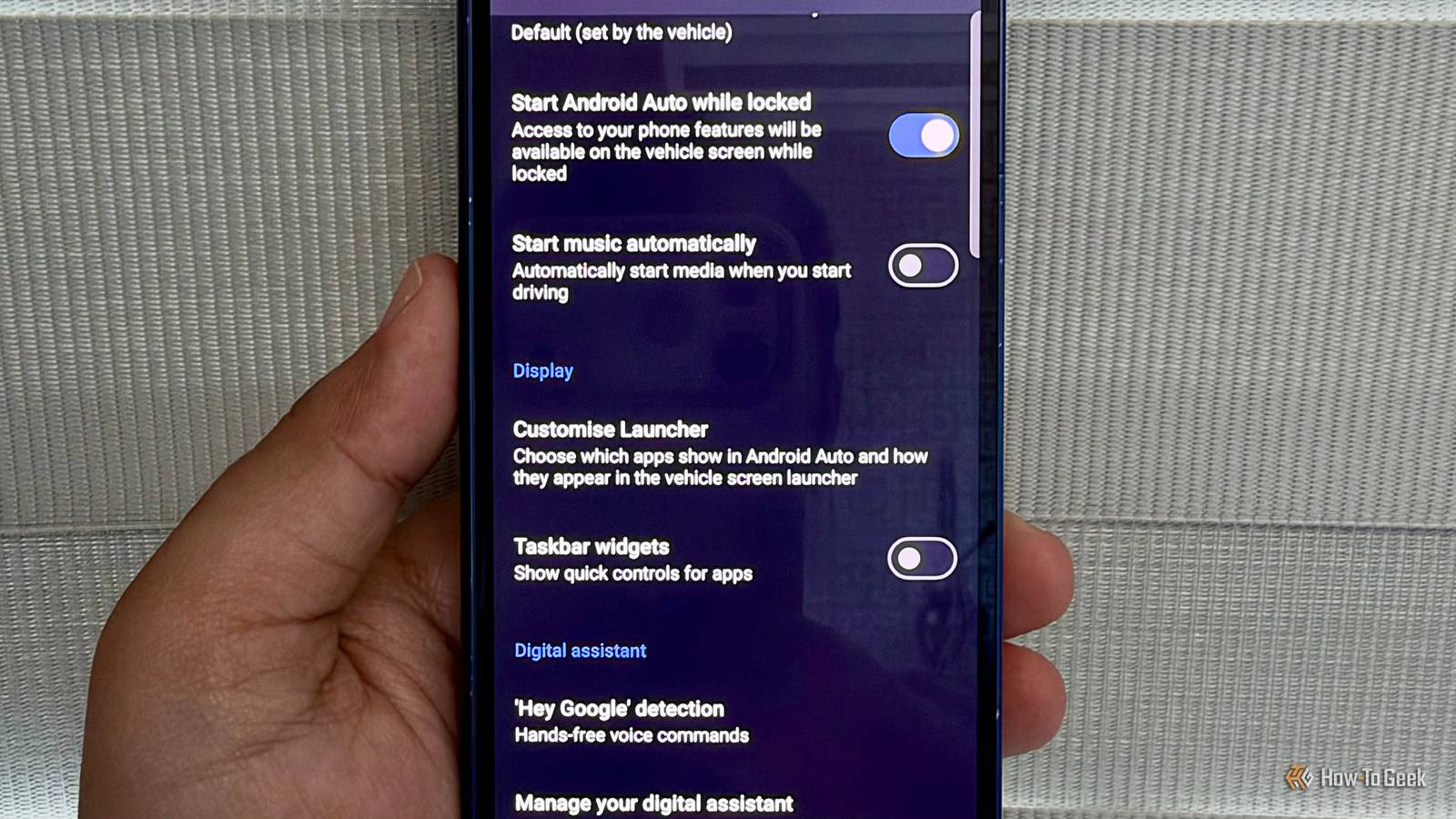
On my Samsung Galaxy Z Fold 6, I went to Android Auto settings -> Customize Launcher.From there, I removed the compatible apps that I don’t use in the car and moved the ones I actually use closer to the top.I kept apps like WhatsApp, Google Maps, and Spotify.
To be honest, I could remove WhatsApp too.I can always use Gemini to text my mom and ask how she’s doing, but for now, I’m keeping it.Now my screen is a little less cluttered, and that’s how I like it.
My messages can stay a little more private I stopped showing the first line I learned this one in a slightly awkward way.One day, my uncle glanced over at my friend's message and read the whole thing before I could do anything.It wasn’t terrible, but it was definitely a message he didn’t need to see.
That was enough for me to rethink having the first line of every message sitting there in plain sight.On my phone, I went to Android Auto settings and turned off Show first line of conversations.The exact wording can vary a little depending on your phone and Android Auto version, but the idea is the same.
I still get notified when my friend messages me, but with the first-line setting off, the beginning of the message doesn’t appear on the car screen anymore.I like this setup better.My uncle doesn’t need a front-row seat for my conversations again.
I wanted more room on my car's screen So I switched off Quick Controls I noticed this while using Google Maps and realized how much of my car's screen was taken up by controls I barely touched.If I’m following directions to pick up my daughter or driving to the grocery store, I want to see the map clearly.I don’t need a bunch of extra buttons sitting there when I already know how to pause my music or switch apps.
Sounds relatable? So I turned off Taskbar widgets for apps.Once it’s off, Android Auto gives the app I’m using more room instead of keeping those extra controls visible.I usually have Google Maps open with Spotify playing in the background, so having a little more space for the map makes a difference to me.
It’s not a dramatic change, but that’s the point.Related I switched from Samsung and immediately missed these 5 Galaxy features My new phone feels oddly incomplete.Posts By Sanya Shah I created a routine to save battery while driving Samsung users, you’re lucky this exists Close This is probably my favorite one because I don’t have to remember to do anything.
Since I use a Samsung phone, I can create a routine that starts when I connect to Android Auto and turns off things I don’t need while I’m driving.Here's how I set it up.Since I know I won’t be using my mobile hotspot while driving, I can have the routine switch it off automatically.
To set it up, I go to Settings -> Modes and Routines -> Routines, tap +, choose my Android Auto connection as the trigger, and then select the actions I want the phone to take.I like this because I’m not constantly digging through settings before I leave.My phone handles it for me, and when the routine is no longer active, the settings return to normal.
It’s one of those Samsung features that feels unnecessary until you actually find a use for it.Less is actually better I just had a few little things bothering me, and once I started poking around my settings, most of them were pretty easy to fix.Now my screen is actually mine, my messages are a little more private, and I’m not keeping things switched on that I don’t really need.
Sometimes, you just need to spend time with your phone and not all the apps.You might find a solution to the problem that’s been annoying you without reading another article or following a 10-step guide.I’m definitely guilty of looking for a fix online first, but sometimes the answer is right there in the settings menu.
Related 4 Gemini tips and tricks I use in Android Auto Because saying "Hey Gemini" isn't enough.Posts By Sanya Shah
Read More