I thought I had a good handle on what started when I turned on my Windows PC.Then I opened Microsoft's Autoruns and was surprised by how many more entries it showed me.So I decided to investigate them to see which ones actually mattered and how much they were using my PC's resources.
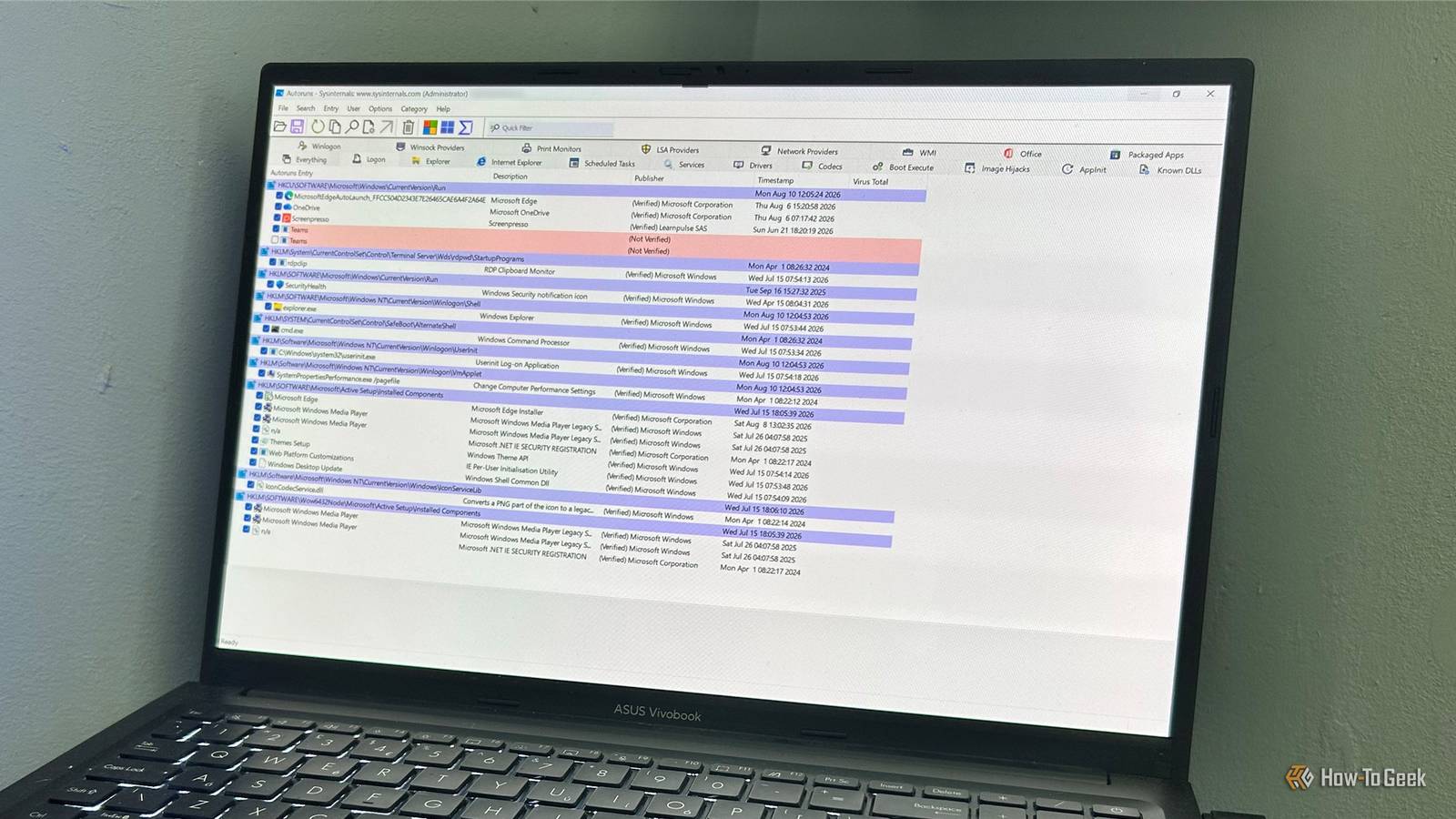
I thought Windows had me covered Autoruns showed me a much bigger startup picture Close I've used Settings > Apps > Startup plenty of times to control which programs launch when I sign in to Windows.I also use Task Manager when I want to see what's actually running after I sign in and how much memory or CPU it's consuming.So when I opened Microsoft's free Autoruns utility, I started with its Logon view to see what was configured to run when I signed in.
It showed the entries I'd expected to see, along with some I didn't immediately recognize.I then checked the Packaged Apps tab, since Windows apps can register their own startup tasks, and found several startup entries that weren't shown in Settings' startup list.That raised a more interesting question than simply asking what I could disable: what were all these entries actually doing? Some were clearly associated with software I recognized, while others pointed to Windows components or startup tasks I'd never noticed before.
I didn't want to disable something important simply because its name was unfamiliar.Rather than start unticking everything unfamiliar, I investigated them one by one.Related 8 Task Manager Tips Every Windows User Should Know Simplify task management! Posts 4 By Shan Abdul Some familiar apps were running in the background Slack and Copilot started without me opening them The first thing I noticed was that some familiar apps were running even though I hadn't opened them.
Slack was a good example.In Autoruns' Packaged Apps tab, I found a SlackStartup entry for Slack's packaged Windows app.After starting Windows, I noticed there were seven slack.exe processes in Task Manager using around 380MB of memory between them.
I didn't want Slack running in the background automatically when I turned on my PC, so I disabled its startup entry in Autoruns and rebooted.After restarting, the seven Slack processes were gone from Task Manager's Processes list.Microsoft 365 Copilot was another sizable process.
It was using a significant chunk of memory after startup, despite me not having opened it.Disabling its startup entry stopped it from loading automatically after my next reboot.Neither of these discoveries means you should automatically disable every entry you find in Autoruns.
But what they did show me was that something configured to start automatically can result in a program already running in the background when I sign in to Windows.One startup entry doesn't always tell the whole story Teams kept running after I disabled its Run entry Close Microsoft Teams gave me a more interesting example.The Autoruns Logon tab showed two Teams entries, both pointing to ms-teams.exe.
I traced the entries to the Windows Run registry key, where there was a Teams value configured to start the program.I unchecked the entry in Autoruns and confirmed that the Teams value disappeared from the registry.That looked promising, so I rebooted without opening Teams myself.
However, Teams was still running in the background: two ms-teams.exe processes appeared in Task Manager, using roughly 2MB and 38MB of memory.When I checked the registry again, the Teams value had returned.That sent me looking for another way Teams could be starting in the background.
I eventually found TeamsTfwStartupTask in Windows' packaged-app startup data.More importantly, Runs at login was still enabled in Teams' Windows settings.Autoruns had successfully removed the startup entry I'd selected.
It also helped me uncover the other mechanism that was causing Teams to run in the background.Autoruns gave me a different view of Windows startup Settings and Task Manager still have their uses I was surprised by how many different ways a program can start with Windows.Settings > Apps > Startup is perfectly adequate when I simply want to manage ordinary apps that launch when you sign in.
Task Manager is useful when I want to see what's actually running and how much of my system's resources it's using.And Autoruns helps me investigate the wider picture.Its different views can lead me to registry startup entries and packaged-app startup tasks that aren't necessarily visible in the normal startup list.
Related Windows felt slow until I realized the problem wasn't my hardware I didn’t make Windows feel faster with new hardware.I made it feel faster by removing startup junk, background clutter, and daily friction.Posts 17 By Rich Hein Autoruns is worth a closer look I came away from this test with a better understanding of what was actually starting on my PC.
Settings and Task Manager are still useful, but Autoruns gave me a much broader view of the things configured to start automatically.It also showed me that not everything I found was worth disabling.That's enough to make Autoruns a useful addition to my Windows toolkit, and one reason I think Microsoft's Sysinternals collection is worth knowing about.
Read More