Despite legions of fellow nerds exclaiming the virtues of Linux or macOS, I still actively choose Microsoft’s Windows.I do so for the same reason I elect to play video games on my console instead of my more expensive, capable, powerful, and modular desktop: convenience.Windows 11 is far from perfect, though, and many default features and apps can be disabled to reduce clutter, improve performance, and make your computer better for you.
So, here are seven lucky ways to optimize Windows 11, even if you don't consider yourself a computer-using expert.Related Windows 11's most underrated keyboard shortcut can change how you work Not enough people know about the Emoji Picker, or give it a chance.Posts 2 By Zachary Boddy OneDrive cloud syncing Keep your files local OneDrive lives on your taskbar, in your apps list, and all over File Explorer.
The idea is perfect integration that syncs all your files to the cloud, but not everyone uses OneDrive for their cloud storage needs, and plenty of people don't want a cloud storage solution at all.OneDrive may seem like a permanent fixture in Windows 11, but it's actually easy to remove.For one, you can simply unlink your Microsoft account and disable OneDrive without removing it.
Open the File Explorer app (you can use the Win + E keyboard shortcut).Navigate to the OneDrive folder in the left-hand navigation menu (should be named something like "Your name" - Personal).Click on OneDrive in the address bar at the top.
Click on the Settings icon in the lower right-hand corner.Navigate to Account in the left-hand navigation menu.Click Unlink this PC.
Confirm your choice to complete the process.Alternatively, you can remove OneDrive from your PC completely (you can always reinstall it later if you'd like).Any local files you had synced to or from OneDrive will remain on your PC.
Open the Settings app (you can use the Win + I keyboard shortcut).Navigate to Apps in the left-hand navigation menu.Navigate to Installed apps on this page.
Find Microsoft OneDrive in this list.Click the right-hand three-dot ellipsis icon.Click Uninstall.
Follow the prompts to complete the uninstall process.Copilot companion Avoid the AI craze Microsoft really wants you to use its Copilot AI companion, which is built into Windows 11, integrated into multiple Microsoft apps, a part of Office and PC branding, and even takes up an entire key on new keyboards.Fortunately, newer versions of Windows 11 also make it much easier to remove the base Copilot from your computer.
Open the Settings app.Navigate to Apps in the left-hand navigation menu.Navigate to Installed apps on this page.
Find Copilot in this list.Click the right-hand three-dot ellipsis icon.Click Uninstall.
Follow the prompts to complete the uninstall process.Yes, you can absolutely repeat the above process with the Microsoft 365 Copilot app to reduce AI integration in your Office apps (and you can still use all your standard Office apps like normal).You can also now change the function of the Copilot key on your keyboard — and the Win + C keyboard shortcut — without installing any new apps or going into the Registry Editor.
Open the Settings app.Navigate to Bluetooth & devices in the left-hand navigation menu.Navigate to Keyboard on this page.
Find Customize Copilot key on keyboard under Shortcuts and hotkeys.Click the right-hand drop-down menu and choose Search (to open Windows Search) or Open an app (to choose the app you want).Widgets and news Who even uses this? Close Another addition to Windows 11 that most people never touch is the Widgets board, which takes up the left-hand side of your taskbar with weather, financial updates, and breaking news.
Accidentally hover over it, and it'll open a poorly curated news feed and various app widgets that you can add, remove, and move around.If you value having the actual widgets, there are still ways to improve the Widgets board without removing it.Open the Widgets board by hovering over or clicking the left-hand area of the taskbar.
Click the Settings icon in the upper right-hand corner.If you'd like to make the Widgets board only open when you click it, toggle the Open Widgets board on hover to Off.If you'd like to remove the news feed entirely and only have actual widgets, navigate to Show or hide feeds on this page.
Toggle Feed to Off (if you have installed alternative news feeds, they'll also show up here).Confirm your choice to complete the process.For those who'd rather remove the Widgets board altogether, that's also possible.
Open the Settings app.Navigate to Personalization in the left-hand navigation menu.Navigate to Taskbar on this page.
Find Widgets under Taskbar items and toggle it Off.Start Menu bloat There's a lot you can improve here The latest Start Menu design in Windows 11 is a major improvement over previous iterations in terms of customizability and intuitiveness, but there are still plenty of features and elements that are enabled by default.If you want a clean, straightforward Start Menu that gets you to your apps as quickly as possible, here are some tips.
Open the Settings app.Navigate to Personalization in the left-hand navigation menu.Navigate to Start on this page.
To remove the pinned section for apps, toggle Pinned to Off.To remove the dynamic section for recent apps, file suggestions, and tips from the Start Menu, toggle Recent to Off (or customize the individual options).To remove the Phone Link panel from the Start Menu, toggle Show mobile device in Start to Off.
To disable notifications in the Start Menu, toggle Show account-related notifications to Off.Related Windows 11 looks and runs better when you disable this feature I was a big fan of Windows Aero, but I recently disabled transparency effects on my Windows PC and I'm not going back.Posts 8 By Goran Damnjanovic Phone Link integration This feature shows up everywhere Close You can connect your phone to your PC to access messages, make phone calls, use apps, and even share files and photos in Windows 11, but Phone Link isn't a useful feature for everyone.
More importantly, it stays active and uses background resources even if you don't set it up, and it's deeply integrated into Windows 11, so it's not easy to remove.Fortunately, there are three things you can do (aside from hiding it from the Start Menu, as I mentioned in the last section) to keep Phone Link (and all related cross-device sharing features) out of your RAM and your way.Open the Settings app.
Navigate to Bluetooth & devices in the left-hand navigation menu.Navigate to Mobile devices on this page.Toggle Allow this PC to access content and capabilities from your mobile devices to Off.
Toggle Show me suggestions for using my mobile device with Windows to Off.Navigate to Apps in the left-hand navigation menu.Navigate to Startup on this page.
Toggle Mobile devices to Off.Toggle Phone Link to Off.Return to Apps.
Navigate to Resume on this page.Toggle Resume to Off.If you'd like to completely uninstall the Phone Link application, you can do so using Windows PowerShell in the Terminal, as there's no easy way through Windows 11's Settings.
Find the Terminal app using the Start Menu or Windows Search.Right-click the Terminal app and click Run as administrator.Click Yes on the prompt to open the Terminal app.
Check that you're in a Windows PowerShell tab or open a new tab by pressing Ctrl + Shift + 1.Copy and paste the following command: Get-AppxPackage Microsoft.YourPhone -AllUsers | Remove-AppxPackage.Press the Enter key and wait for the process to complete (Phone Link should be completely uninstalled, but you may need to restart your PC to remove it from the Start Menu list of installed apps).
Xbox gaming features Not everyone is a gamer Xbox is a major part of the Microsoft ecosystem, and it's understandably deeply integrated into Windows 11.If you don't plan to use those Xbox gaming features (or game at all), you can free up resources and clean up your computer by removing or disabling them.Open the Settings app.
Navigate to Apps in the left-hand navigation menu.Navigate to Installed apps on this page.Find Xbox in this list.
Click the right-hand three-dot ellipsis icon.Click Uninstall.Find Xbox Live in this list.
Click the right-hand three-dot ellipsis icon.Click Uninstall.Navigate to Gaming in the left-hand navigation menu.
Navigate to Game Mode on this page.Toggle Game Mode to Off.The Gaming section of Settings has other options, but they don't matter if you uninstall all the Xbox apps.
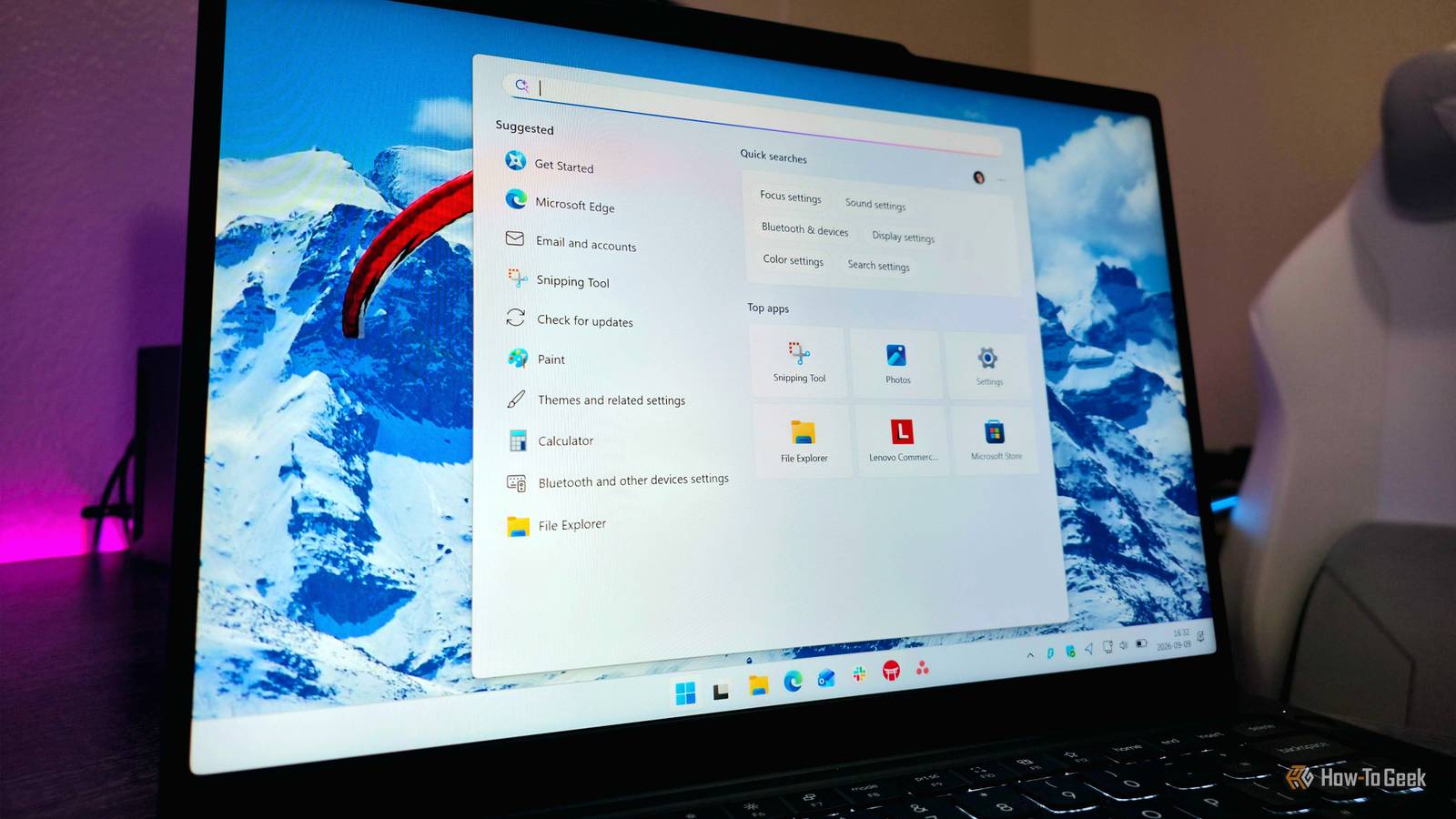
That includes the Xbox Game Bar, which is unfortunately more difficult to remove from Windows 11, as it's treated as a system component (like Phone Link).That doesn't mean it's impossible, though! Find the Terminal app using the Start Menu or Windows Search Right-click the Terminal app and click Run as administrator Click Yes on the prompt to open the Terminal app Check that you're in a Windows PowerShell tab or open a new tab by pressing Ctrl + Shift + 1 Copy and paste the following command: Get-AppxPackage Microsoft.XboxGamingOverlay -AllUsers | Remove-AppxPackage Press the Enter key and wait for the process to complete (Game Bar should be completely uninstalled, but you may need to restart your PC to remove it from the Start Menu list of installed apps) Search web results Drop Bing to speed up searches My final suggestion is to massively improve the performance and consistency of scouring your apps and files with Windows Search in the Start Menu, on the taskbar, or by pressing Win + S.Many Windows users (myself included) have experienced slow load times and annoyingly irrelevant web results when looking for something, but it's possible to completely remove Bing and internet-connected web results from your computer's Windows Search feature.
You can dive into the Registry Editor if you're confident, but I'll make it much easier and give you a way to do so with Windows PowerShell.Find the Terminal app using the Start Menu or Windows Search.Right-click the Terminal app and click Run as administrator.
Click Yes on the prompt to open the Terminal app.Check that you're in a Windows PowerShell tab or open a new tab by pressing Ctrl + Shift + 1.Copy and paste the following command: New-Item -Path "HKLM:\SOFTWARE\Policies\Microsoft\Windows\Explorer" -Force | Out-Null; New-ItemProperty -Path "HKLM:\SOFTWARE\Policies\Microsoft\Windows\Explorer" -Name "DisableSearchBoxSuggestions" -Value 1 -PropertyType DWord -Force | Out-Null.
Press the Enter key and wait for the process to complete.Restart your computer.Windows 11 is great, but it feels awfully bloated sometimes Decades of iteration and updates have made Windows 11 incredibly powerful and packed with an endless array of features (especially if you're invested in Microsoft's ecosystem), but many of the features you're not using may be slowing down your computer, taking up precious storage or memory, and getting in your way.
Disabling or removing the seven features listed above results in a much cleaner Windows 11 experience.
Read More